Aimsun Licenser
Aimsun Licenser authorizes your computer to use Aimsun modeling software. It is available as an integrated feature in Aimsun Next and as a standalone application.
Aimsun Licenser in Aimsun Next
On Windows and Linux, Aimsun Licenser is accessible from the Account entry in the Help menu. On macOS, the Account entry is located in the Aimsun Next menu.
Aimsun Licenser Standalone
Aimsun Licenser can be downloaded from the downloads section on myAimsun.
First steps
You must have an active Aimsun account to access the Aimsun Licenser application.
If you need help setting up or accessing your Aimsun account, please contact the Commercial Operations Team.
Login
The first time you sign in to Aimsun Licenser, you will need to enter your Aimsun account username and password.
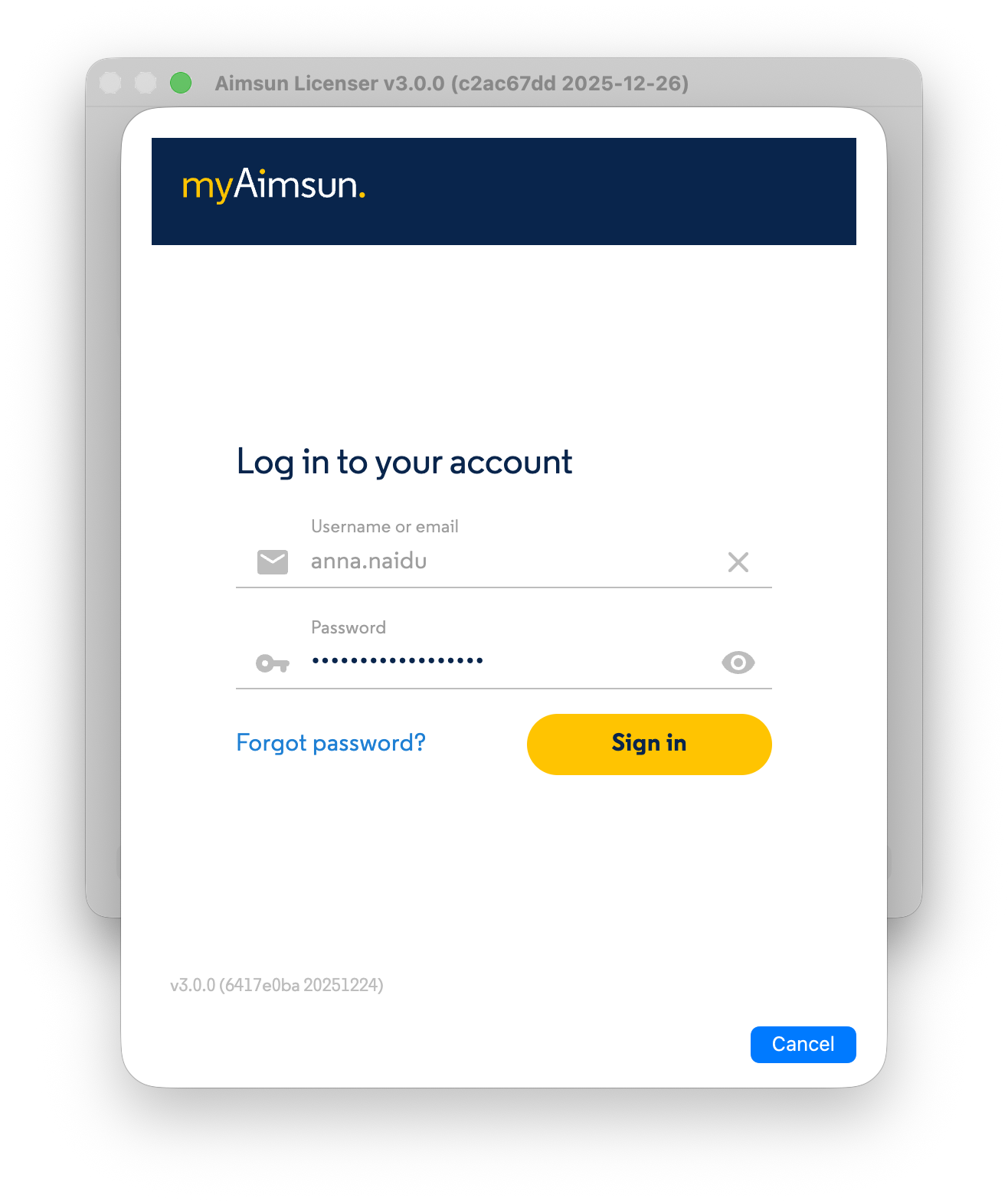
Licensing a computer
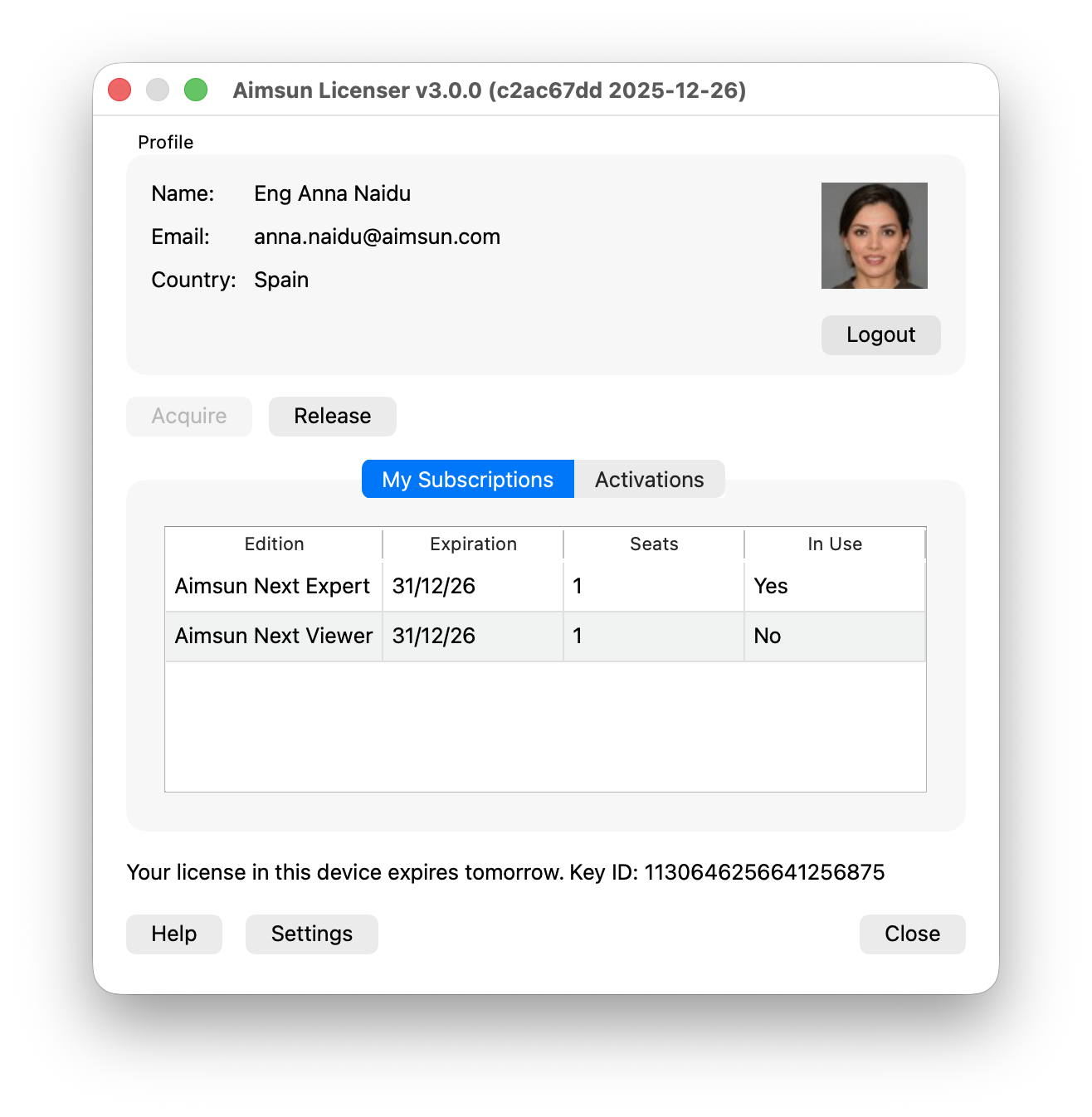
After login, Aimsun Licenser displays your user information (name, email, and avatar from Gravatar) and the seats assigned to your account.
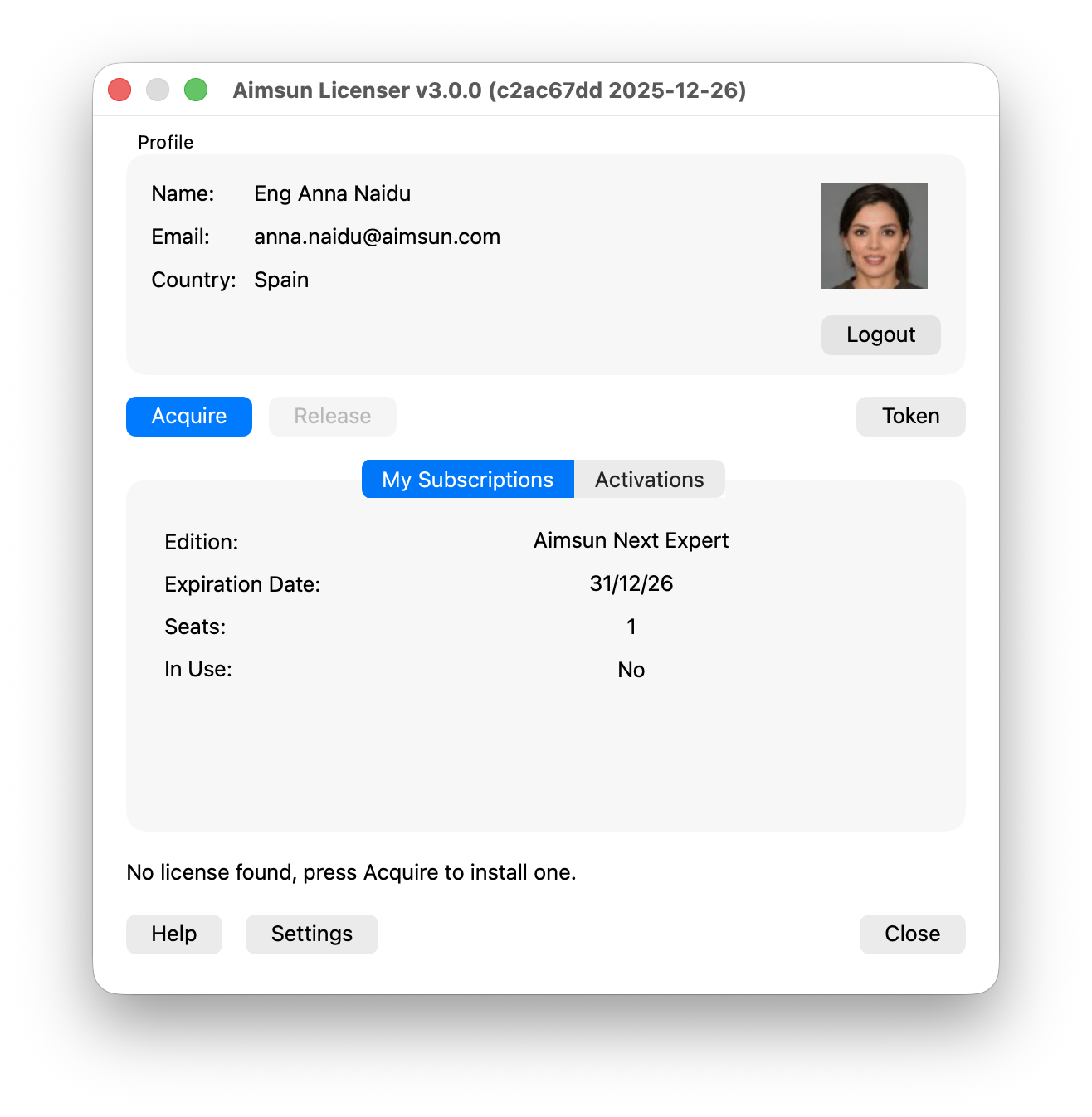
Click Activate to install a license on this computer. The license stays valid for up to 30 days. See Renewing your license for details.
Activations
The Activations tab lists every computer that currently holds a license for this seat.
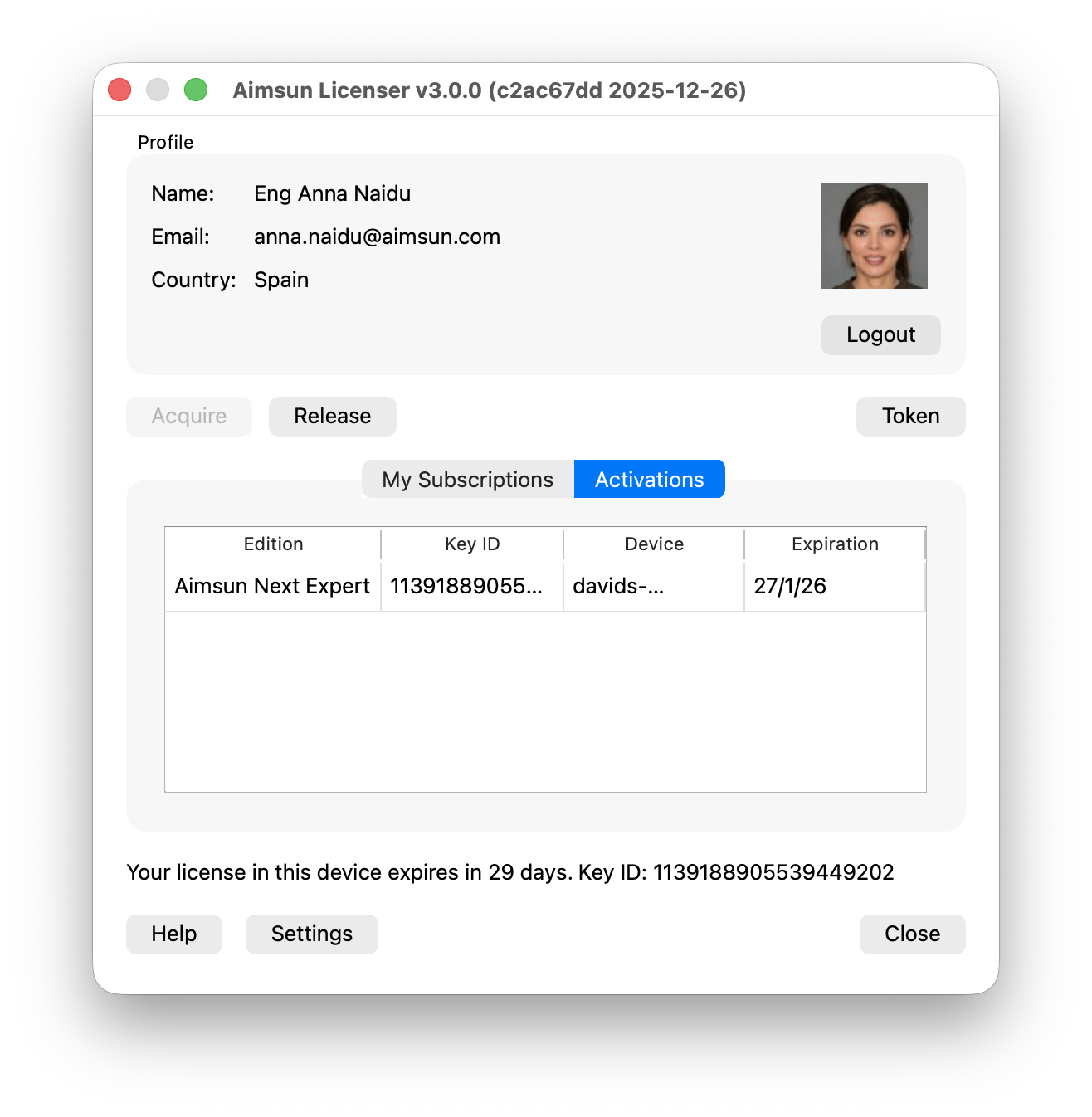
The Expiration column shows when the license installed on that computer will expire. See Renewing your license for details.
Renewing your license
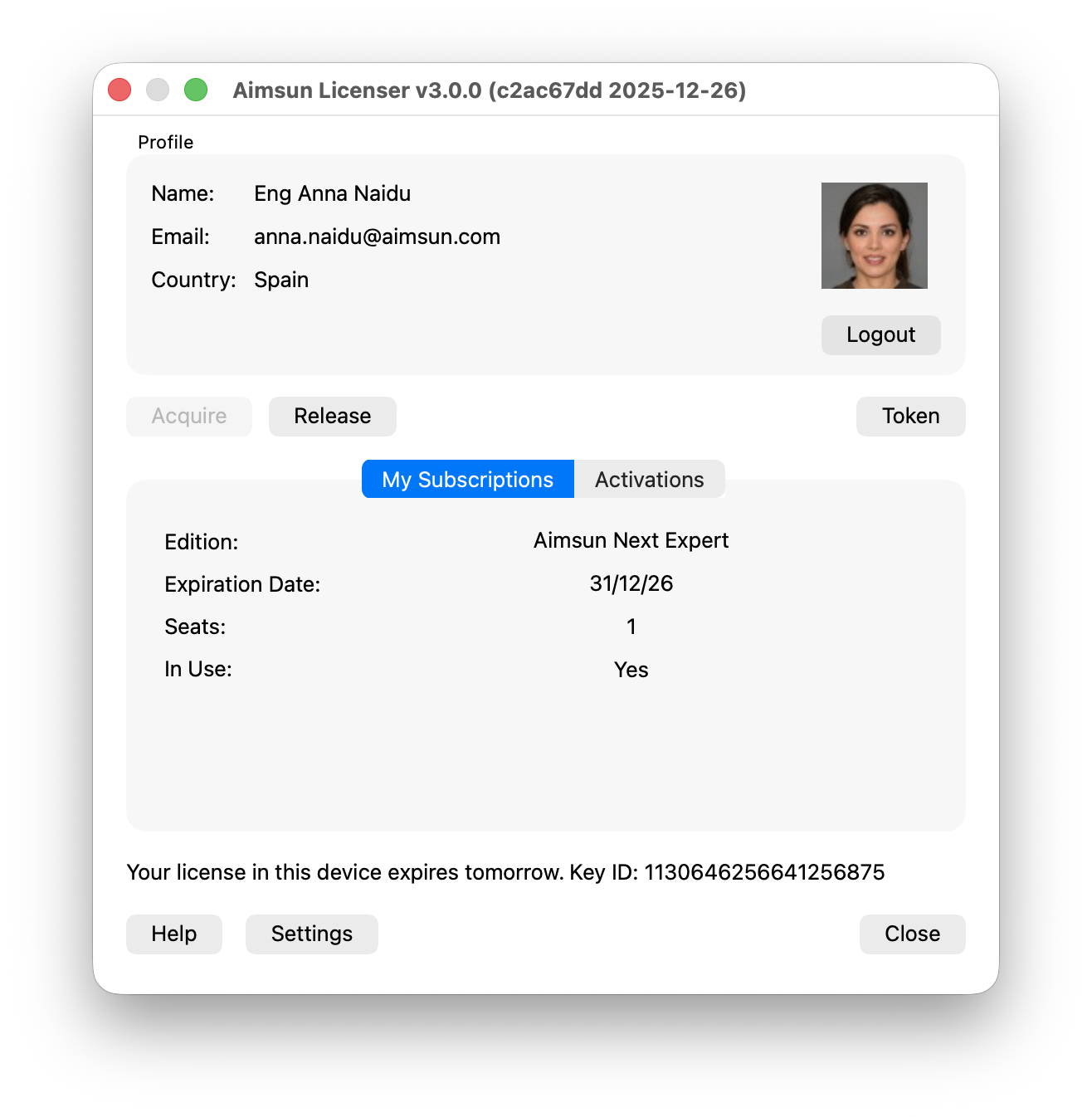
Licenses are valid for up to 30 days. A license can be renewed in two ways:
- Let the license expire and, the next time you start Aimsun Licenser, click Activate to install a fresh one.
- Before the expiration date, click Release to free the license and then Activate to install a new one for another 30 days.
Renewal works as long as your licensing contract is still active.
Releasing your license
To release a license before its expiration date, click Release. A license can only be released when Aimsun Next is not running on this computer.
Moving a license to another computer
On the first computer, click Release to free the license. Then, on the second computer, click Activate to install it there.
Recovering a missing license (grace activation)
Sometimes a license that was correctly installed on this computer stops being visible in the local license server. Causes include antivirus quarantines, operating system repairs, license server reinstalls, and hardware or software changes that invalidate the machine identity used by the license server.
When this happens, Aimsun Licenser detects the situation at startup: the myAimsun server still counts the activation against this computer, the local license server holds no matching license, and this seat has no free activation slot.
License Issue Detected dialog
When a missing activation is detected, Aimsun Licenser opens a License Issue Detected dialog that lists the activation(s) the server still has registered to this computer.
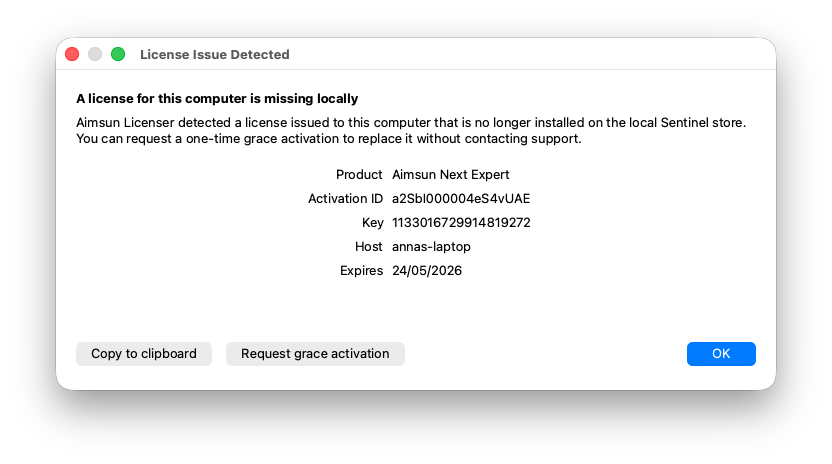
Two options are available:
- Copy to clipboard: copies the activation details (product, activation id, key, host, expiration) so you can paste them into an email to Aimsun support.
- Request grace activation: requests a one-time replacement activation without contacting support. Available when your account has not used a grace activation for this seat in the last 30 days.
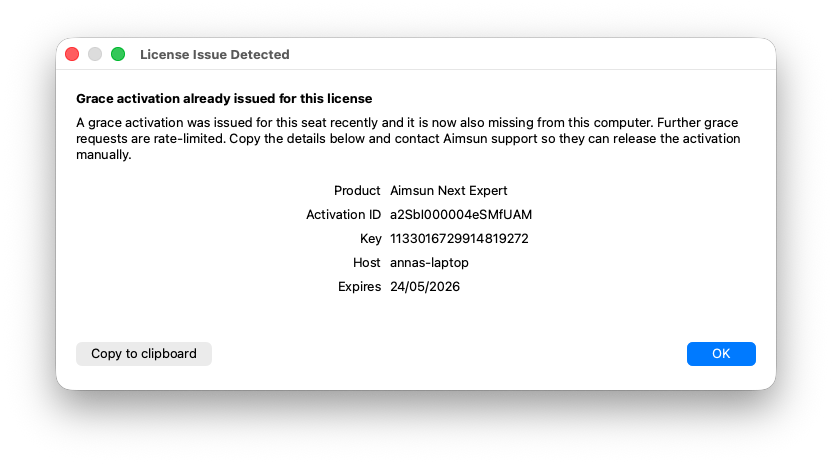
If you have already used a grace activation for this seat recently, the dialog will show the details but the Request grace activation button will not be available. Use Copy to clipboard and contact Aimsun support to have the activation released manually.
Requesting a grace activation
Press Request grace activation. The Aimsun licensing service will:
- Mark the missing activation as Lost on the server.
- Issue a brand-new license for this computer.
- Install it into the local license server on this computer.
When the flow finishes, your license is ready and the main window refreshes automatically. The new activation appears in the Activations tab as a normal entry.
Grace activation limits
Grace activations are limited to one per seat every 30 days. If the new activation itself goes missing within that window, the next Request grace activation will be refused; contact Aimsun support to recover.
If the install fails locally
If the server issues the new license but it cannot be installed on your computer, Aimsun Licenser shows the new activation id in the error dialog. Contact Aimsun support with that id so they can complete the install for you.
Multiple licenses
If your Aimsun account holds several seats, pick the one you want to activate by clicking its row in the table.
Preventing license sharing
By default, a license installed on one computer can be seen by other computers on the same network. This means other users may access and use that license, preventing the owner from using it. To avoid this, change your local settings by following these steps:
- Open http://localhost:1947/int/config_from.html
- Under Allow Access from Remote Clients, select No one
- Click Submit
Now, other users will no longer be able to access your license.
If you also want to avoid seeing licenses from other computers, follow these steps:
- Open http://localhost:1947/int/config_to.html
- Uncheck Allow Access to Remote Licenses
- Uncheck Broadcast Search for Remote Licenses
- Clear the Remote License Search Parameters text field
- Click Submit
Now, you will no longer see or use licenses from other users.
License sharing
You can share any number of seats by installing them on a single computer, which will act as your license server. Any computer that can access this server will be able to run Aimsun Next, as long as a free seat is available. Each running instance of Aimsun Next uses one seat.
To allow other users to access the seats from your server, follow these steps:
- Open http://localhost:1947/int/config_from.html
- Under Allow Access from Remote Clients, select All licenses are accessible without need of identity
- Click Submit
On the user’s computer, enable access to remote licenses by following these steps:
- Open http://localhost:1947/int/config_to.html
- Check Allow Access to Remote Licenses
- Click Submit
Settings window
The Settings window is where you can adjust a few key options for logging and network proxy.
Note: Any changes made here require a restart of the app to take effect.
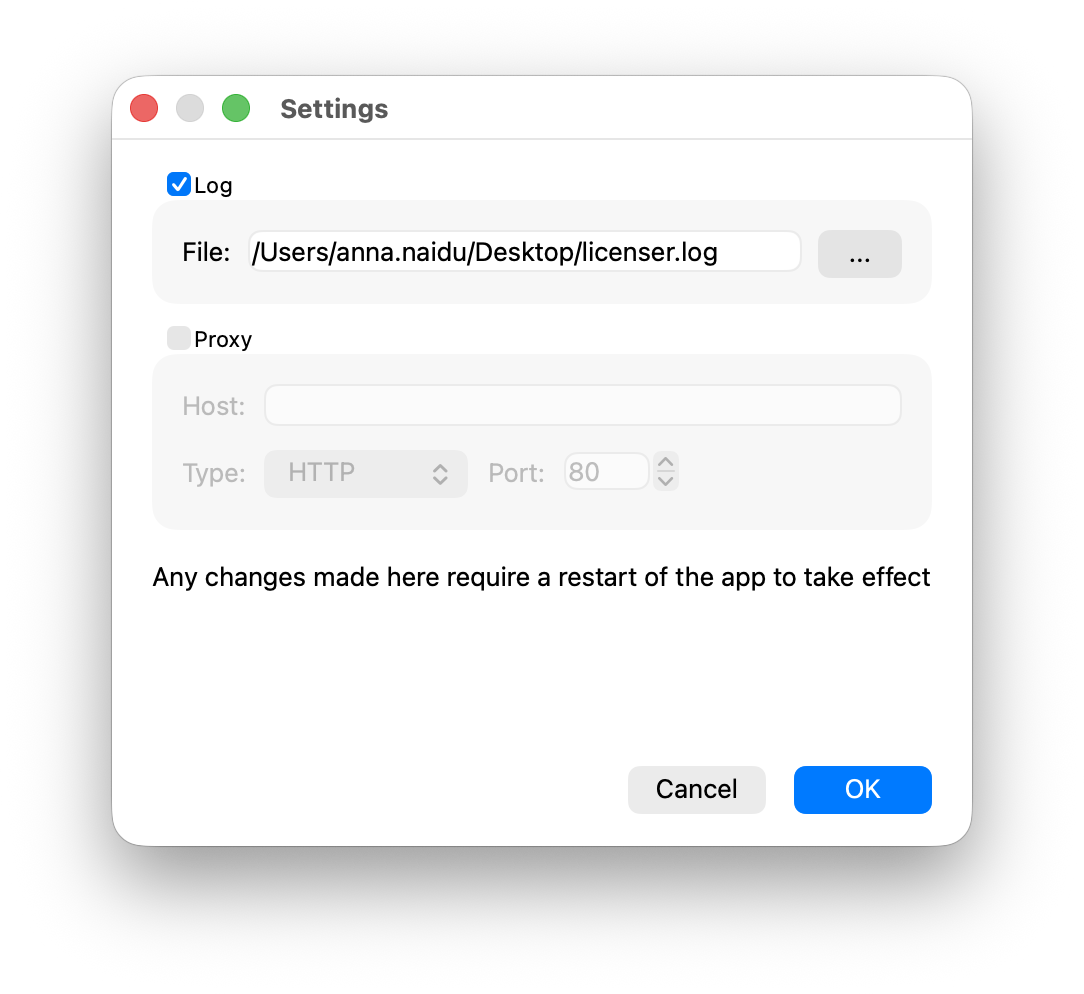
Settings You Can Adjust
1. Turn on Logging
Keeps a record of the app’s activity and any issues that pop up.
- Options:
- Checked: Enables logging.
- Unchecked: Disables logging.
- Where to Save Logs:
- If logging is on, you can choose the file location where the app will save these logs.
2. Use a Proxy
Routes the app’s internet connections through a network proxy.
- Options:
- Checked: Enables the proxy.
- Unchecked: Disables the proxy.
- Proxy Details (if proxy is on):
- Hostname: Enter the address of the proxy server.
- Proxy Type: Pick HTTP or SOCKS 5.
- Port: Specify the port number for the proxy.
How to Open
- Open Settings from the main window.
- Make any changes you want.
- Click OK to keep your changes, or Cancel to back out without saving.
Troubleshooting
Your license expires tomorrow
This message refers to the renewal period of the seat. As described earlier in this manual, licenses need to be renewed every 30 days. See Renewing your license.
No free activation slot for this seat
The main window shows:
No license is installed on this computer and there is no free activation slot for this seat. Check the Activations tab to see which computers are using this seat and release it there if needed.
This happens when every activation slot of your seat is already in use, typically on one or more other computers.
- If one of the computers listed in the Activations tab is yours and is no longer needed, open Aimsun Licenser on that computer and press Release.
- If one of the rows points at this computer but no license is actually installed, it is an orphan activation. See Recovering a missing license (grace activation).
- Otherwise, contact your subscription administrator to raise the activation limit, or contact Aimsun support to release an activation manually.
No Subscriptions
Your administrator needs to assign a seat to you in the my.aimsun.com portal. Once assigned, it will appear under Subscriptions > My Subscription, and you will be able to activate the seat on your computer using the Aimsun Licenser.
To assign a seat to a user, go to the User section of the Admin Portal, click Manage next to the user, navigate to Subscriptions, and assign a seat.
You can find more information in the myAimsun Admin Manual.
Cannot Connect to the Server
This error occurs when Aimsun Licenser cannot reach the myAimsun servers to log in or retrieve licenses.
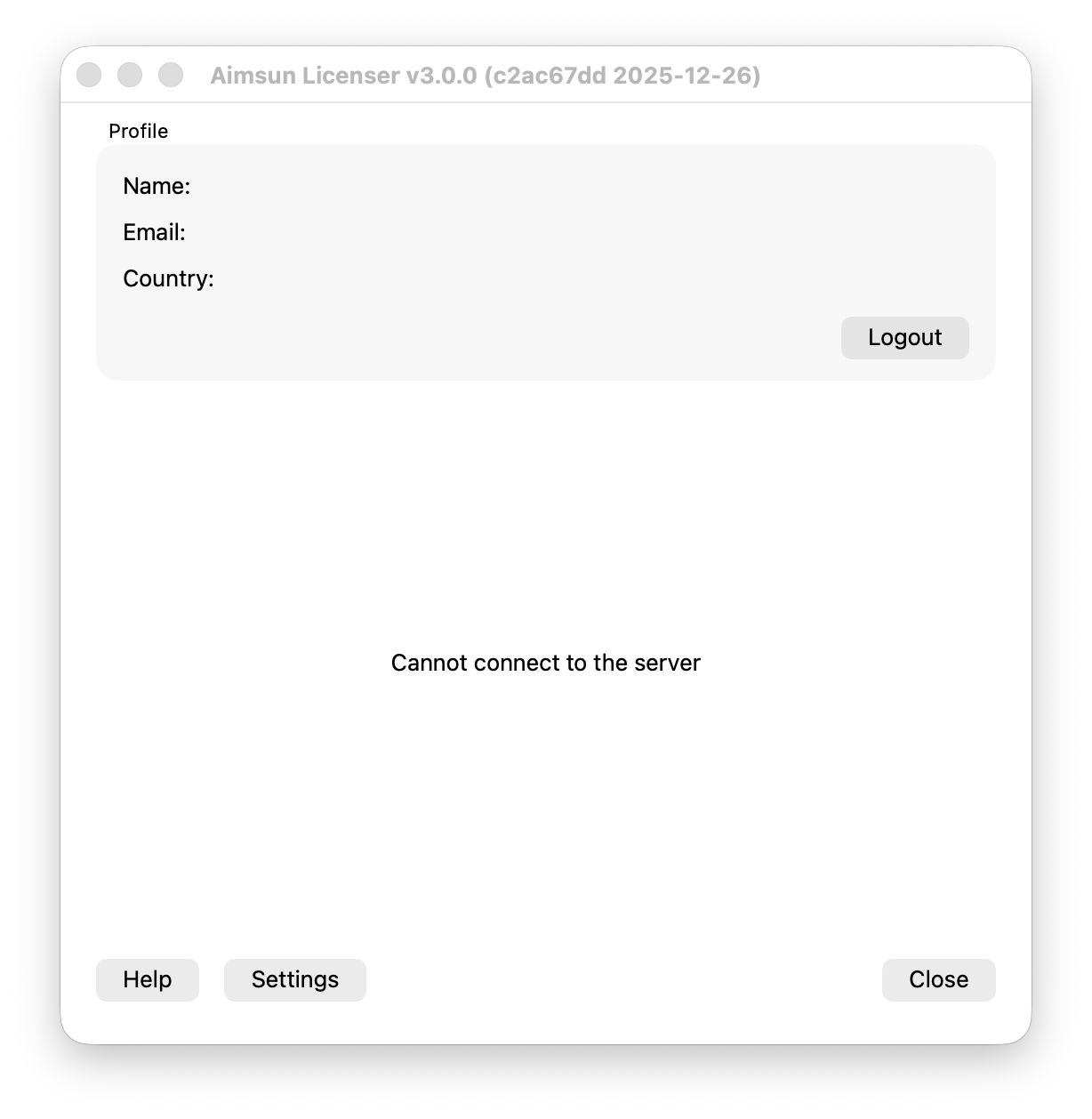
If your network uses a proxy, enable the proxy option in Settings.
If you do not use a proxy or the issue persists, your network may be blocking access to our servers due to a firewall, antivirus, or security software. Please contact your IT team to whitelist the following domains (all of which use port 443):
| Domain | Description | More information |
|---|---|---|
| my.aimsun.com | myAimsun user portal | https://my.aimsun.com |
| admin.aimsun.com | myAimsun admin portal | https://admin.aimsun.com |
| api.aimsun.com | Aimsun APIs (profile, licenses, etc.) | |
| auth.aimsun.com | Aimsun authentication server | |
| login.aimsun.com | Aimsun login server | |
| cognito-idp.eu-central-1.amazonaws.com | AWS Cognito authentication | https://aws.amazon.com/es/cognito/ |
| *.cloudfront.net | AWS Cognito authentication UI | https://aws.amazon.com/cloudfront/ |
| *.ingest.sentry.io | Error reporting | https://sentry.io/welcome/ |
| www.gravatar.com | Used to display public avatars | https://gravatar.com/ |
Glossary
- Seat. An entitlement to run Aimsun Next. Each seat activated on a computer gives that computer the right to run one concurrent Aimsun Next session. A user with several seats assigned can run that many Aimsun Next sessions side by side on the same computer.
- Seat assignment. A myAimsun administrator can assign one or more seats to a user in a single operation. When the user clicks Activate in Aimsun Licenser, all of the seats assigned as a group are activated together on that computer.
- Activation. The server-side record that one slot of a seat is currently installed on a specific computer. It has a hostname, an expiration date and the key id of the local license. Creating an activation consumes one slot from the seat.
- License. The file that Aimsun Licenser installs into the local license server on your computer. It is issued by myAimsun when the activation is created and is what actually grants the computer the right to run Aimsun Next until the activation expires.
- Local license server. A small service that runs on your computer (the Sentinel LDK Run-Time Environment) and holds every installed Aimsun license locally.
- Licensed computer. A computer that currently holds a valid license in its local license server, paired with an Active activation on the myAimsun servers.
- Orphan activation. An activation still registered to this computer in myAimsun while the matching license is no longer present in the local license server. See Recovering a missing license (grace activation).
- Grace activation. A one-off replacement for an orphan activation, which you can request from Aimsun Licenser without contacting support. Limited to one per seat every 30 days.
- Release. Cancels the activation in myAimsun and removes the license from the local license server, freeing a slot.