Data Comparison
This tool performs comparative analyses of results from different replications, results, averages, experiments, real data sets, in the project in the form of a view mode in the main 2D view and a table or a regression plot in the dialog.
A new Data Comparison Configuration can be started from the Data Analysis folder in the Project window or from the Data Analysis: Data Comparison menu option. Data Comparison Configuration objects can be renamed, edited, and deleted from their context menu.

Data Comparison Dialog
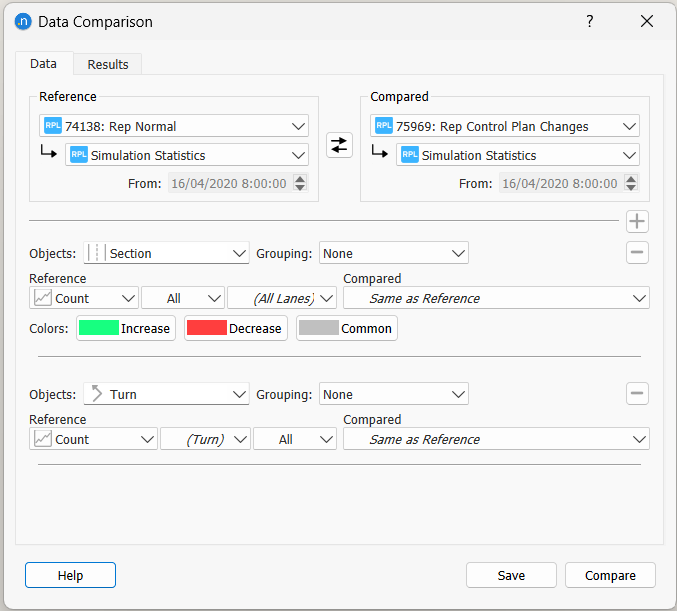
The default reference and compared outputs originators are specified and their order can be inverted.
A comparison type is added using the + button (up to 3 types) and deleted using the - button. On each comparison type define:
- The type of object used in comparison. This can be one of: Section, Detector, Detector Station, Centroid Connection, Grouping, Node, Subpath, Turn, Transit Line, Transit Station, Transit Stop. The list of available objects will depend on the type of experiment to be compared. For example, Transit Line, Station and Stop will appear when comparing Static Transit Assignment results, but not when comparing Microsimulation replications.
- (Optional) A Grouping that contains the objects to compare. If no Grouping is defined, all objects will be compared.
- The Reference and Compared attributes are specified individually. There is no requirement for the same data to be used: for example, a dynamic simulation achieved speed can be compared with the speed limit for the section. Those variables which have time series data are flagged with a small graph icon. Where there are disaggregation options for the variable, i.e. in the case of speed and flow by lane and by user class, these context sensitive selection options are presented.
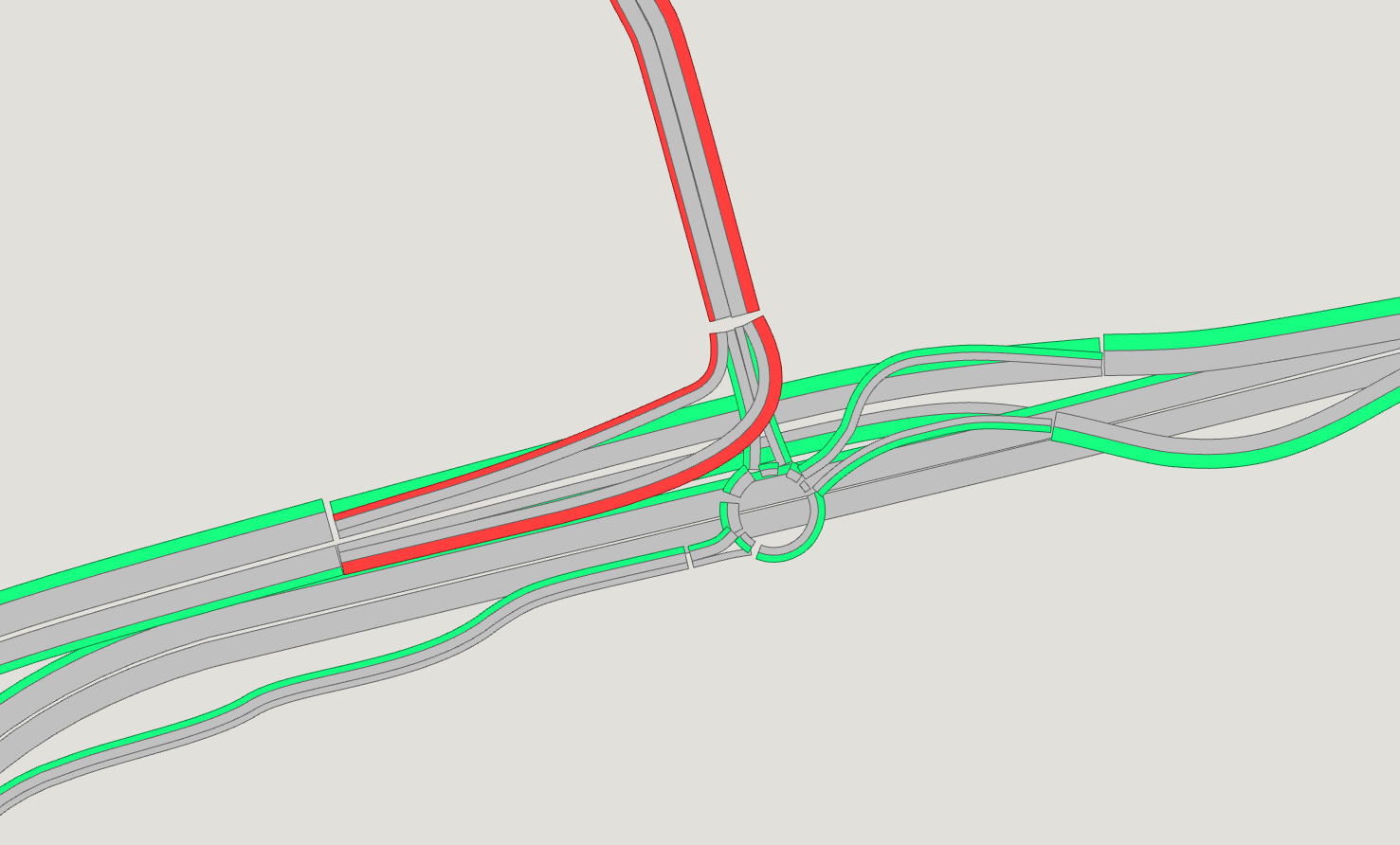
- For sections, the colors for the common values and the difference, shaded according to its sign.
Once the comparison has been configured, click on the Compare button to perform it and the Save button to store the configuration in the Aimsun document as an object in the Project window, under the Data Analysis folder.
Comparison Result
The comparison result is shown in the 2D view with the common values and the differences shaded for sections, and a blue to red color ramp for the rest of objects. The comparison generates a new View Mode which can be edited using the View Mode Editor to customize the view and the associated View Styles.
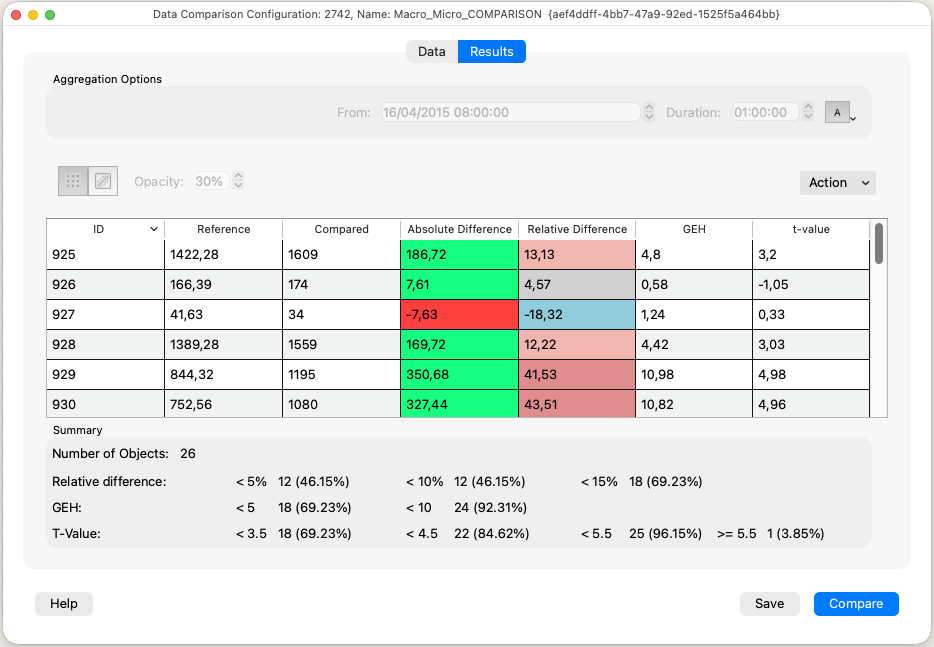
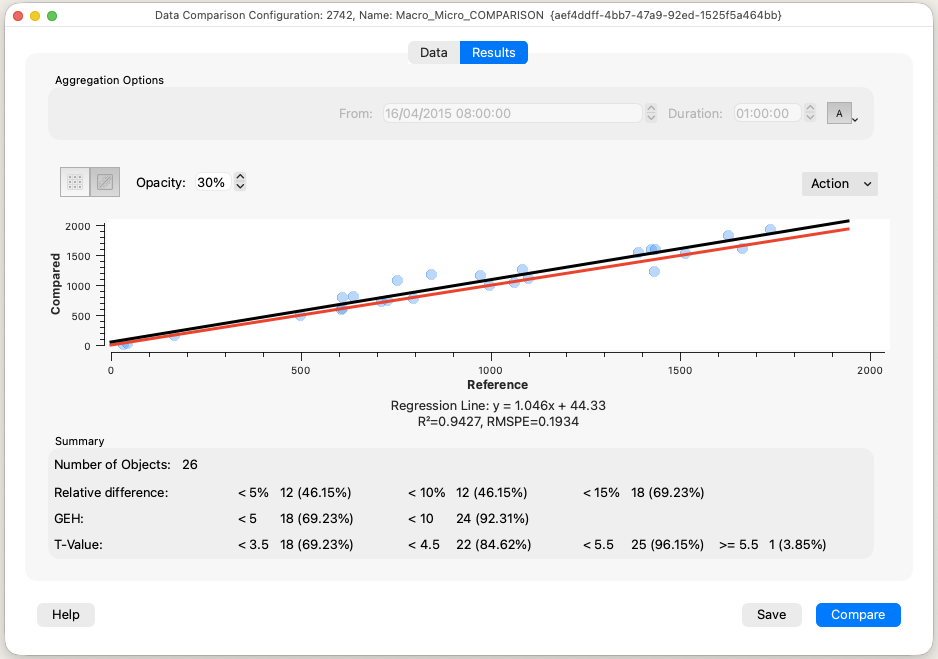
The Results tab of the Comparison dialog displays comparison as a table or as a regression analysis with graphical outputs.
The date and duration of the comparison can be adjusted in the Results tab to focus the analysis on a smaller time period. The type of aggregate used can be adjusted to use the mean, minimum, maximum, or sum.
From the Action button, the data can be copied as a snapshot to place a copy of the graph image on the system clipboard or Copy table Data option is used to copy the data to the clipboard so it can be pasted into other applications such as Microsoft Excel.
Summary
The Summary box at the top of the Results tab reports how many of the compared objects fall inside each accuracy band. Every entry gives the number of objects and the percentage of the total they represent.
- Number of Objects: the objects that hold a value in both the reference and the compared output. An object present in only one of the two is left out of the summary.
- Relative difference: the objects whose relative difference is within 5%, 10% and 15%, in either direction.
- GEH: the objects with a GEH below 5 and below 10. This row is shown when both of the compared variables support GEH, which covers flows and counts.
- T-Value: the objects with a t-value below 3.5, 4.5 and 5.5, together with those of 5.5 and above. This row is shown in models that carry the t-value attribute.
Comparison Metrics
The result table holds one row per compared object:
- ID: the object identifier. A Type column is added when the comparison covers more than one type of object.
- Reference and Compared: the value of each variable, aggregated over the comparison interval.
- Absolute Difference: the compared value minus the reference value, so a positive figure means the compared output is the larger of the two.
- Relative Difference: the same difference as a percentage of the reference value. Where the reference value is zero and the compared value is not, the difference is infinite.
- GEH: the GEH statistic between the two values, shown when both variables support it. As GEH applies to hourly flows, variables expressed as counts are adjusted to an hourly rate over the comparison interval.
- t-value: shown in models that carry the t-value attribute.
The Absolute Difference cells are shaded with the positive and negative colors defined for the comparison type. The Relative Difference cells use a color ramp of seven steps that changes at 10%, 25% and 50% in each direction, so the sign and the size of the difference can be read from the cell without reading the number. Cells holding an infinite difference use the color defined for infinite values.