Dynamic Network Checks
Not all network errors can be found by the Check and Fix tool. Some errors will only become apparent when the model is run. The Microsimulator Network Checker and the Mesoscopic Simulator Network Checker will detect issues in a running simulation and highlight them for the modeler's attention.
Microsimulator Network Checker
The Microsimulator Network Checker’s purpose is to detect problems within a running simulation.
To select the Microsimulator Network Checker, open the scenario editor, and select the Aimsun Next API tab, as in the figure below.
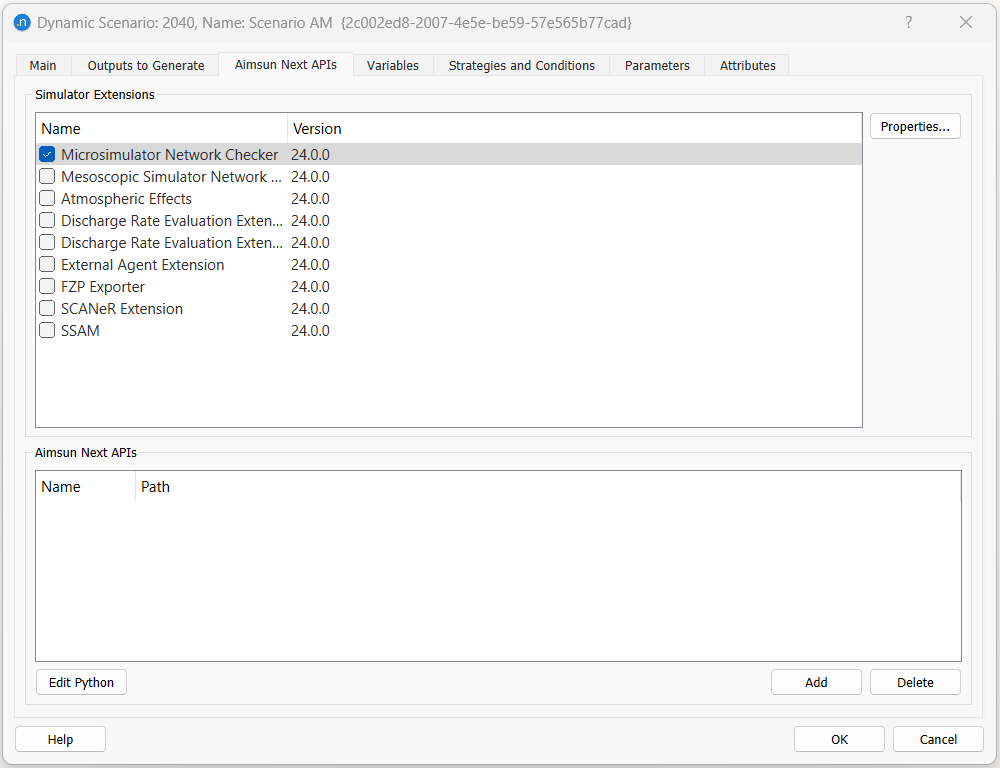
Check the tick box to enable the Microsimulator Network Checker. Double-click on the text description to open the network checker editor.
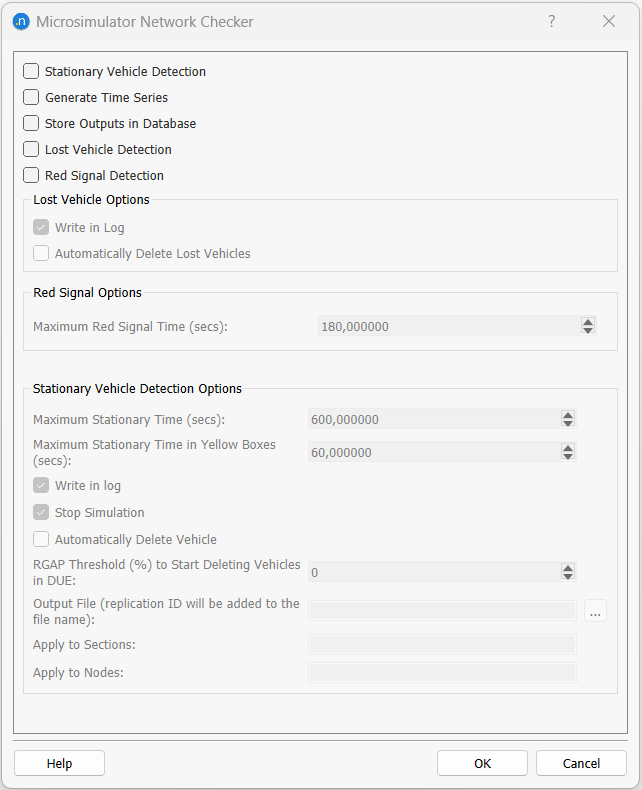
Selecting Stationary Vehicle Detection, means the Microsimulator Network Checker looks for vehicles that have been stationary for a time greater than the Maximum Stationary Time. Any of three actions might be taken. The vehicle might be:
- recorded in the log (either the Log window or the file defined as Output File),
- the simulation might be stopped by selecting Stop Simulation and
- the vehicle might be automatically removed by selecting Automatically Delete Vehicle.
The options in stationary vehicle detection are:
-
The check can only be applied to specific sections of interest (and reduce execution time) by specifying section IDs in a comma separated list in the field Apply to Sections.
-
The number of deleted vehicles in sections and nodes can be gathered if Automatic Delete Vehicle is enabled.
-
RGAP Threshold (%) to Start Deleting Vehicles in DUE. If the value is greater than 0 and we are using a DUE This option automatically starts the deletion of vehicles after reaching the RGap defined by this field.
Visible indication
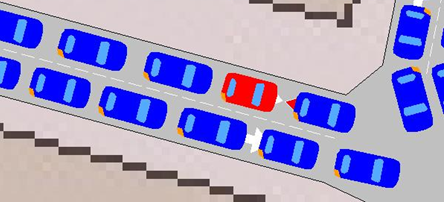
The figure above shows the case where the simulation has been stopped and a stationary vehicle has been detected. In this case, the vehicle is stopped due to a heavily congested network.
By selecting Lost Vehicle Detection, the Microsimulator Network Checker looks for vehicles that cannot reach their destination. One of two actions can be taken.
- Write in Log, which prints in Log Window information about the lost vehicle.
- Automatically Delete Lost Vehicle, which deletes all lost vehicles.
Mesosimulator Network Checker
The Mesosimulator Network Checker detects problems within a running mesoscopic simulation or the mesoscopic areas in a hybrid simulation.
To select the Mesosimulator Network Checker, open the scenario editor, and select the Aimsun Next API tab, as in the figure below
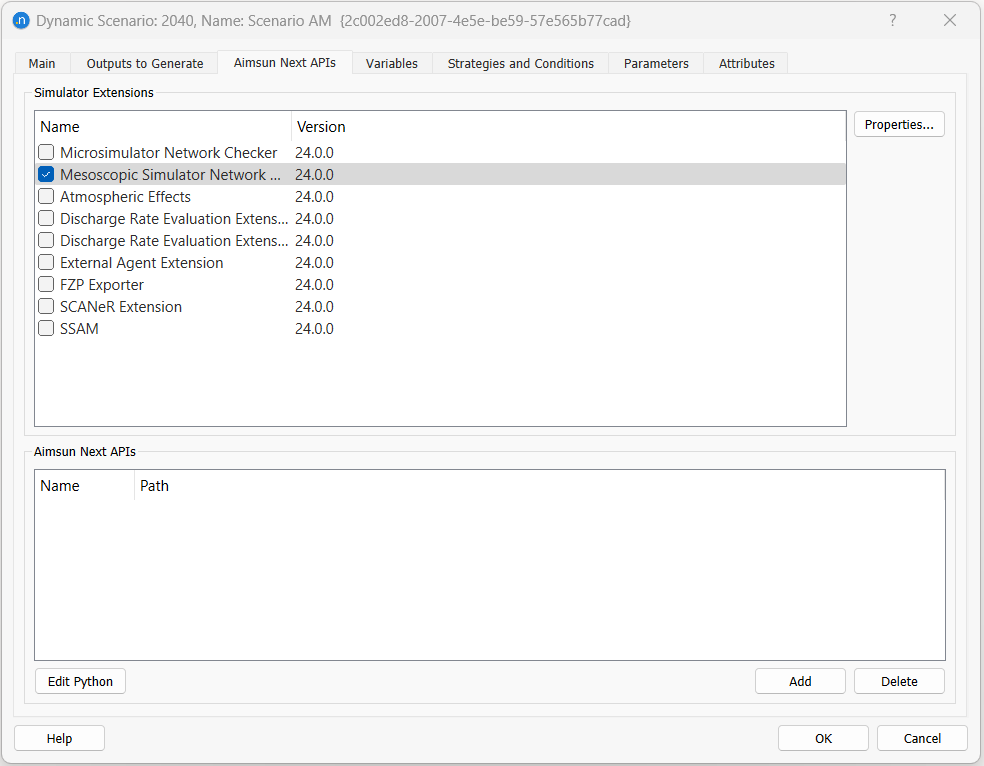
Tick the box to enable the Mesosimulator Network Checker. Double click on the text description to open the mesosimulator network checker editor.
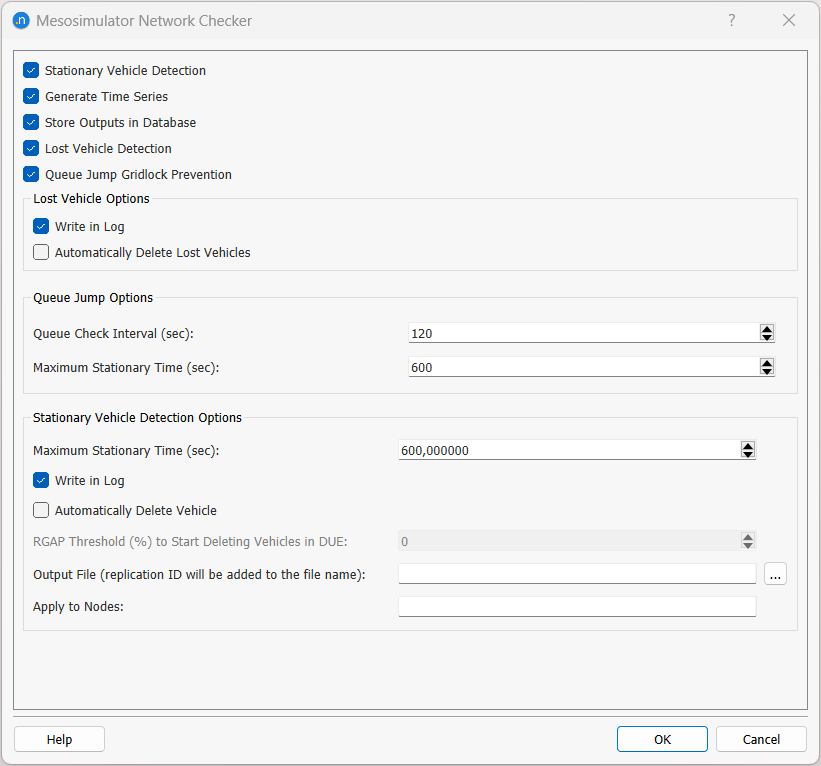
By selecting Lost Vehicle Detection, the Mesosimulator Network Checker looks for vehicles that cannot reach their destination. One or both of two actions can be taken.
- Write in Log, which prints in the Log window information about the lost vehicle.
- Automatically Delete Lost Vehicles which deletes all lost vehicles.
Lost vehicle paths will be marked as "TRJ" in the Path Analysis Tool.
The Queue Jump Gridlock Prevention is used to make vehicles jump to the next section in their path, if they are stuck behind other vehicles that cannot get to their own next section. For example, a vehicle that wants to go straight but is queuing after one that wants to turn left and is not able to. The available parameters specify:
- Queue Check Interval, how often the check for stuck vehicles is done,
- Maximum Stationary Time a vehicle will be waiting until it is able to jump other vehicles ahead in the queue.
By selecting Stationary Vehicle Detection, the Mesosimulator Network Checker looks for vehicles that take longer than expected to cross a section and its next turn, by more than Maximum Stationary Time. One or both of two actions can be taken. The vehicle can be
- recorded in the log (either the Log window or the file defined as Output File),
- automatically removed by selecting Automatically Delete Vehicle.
Unlike the Microsimulator Network Checker, the mesoscopic check does not measure how long a vehicle has been stopped. When a vehicle enters a section, it is given a deadline:
deadline = max( entry time + section free flow travel time, earliest time the vehicle can leave the section ) + next turn free flow travel time + Maximum Stationary Time
A vehicle that is still in the section or in its next turn at its deadline is detected as stationary. Deadlines respect the order of the queue: a vehicle's deadline is never earlier than the deadline of the vehicle ahead plus its reaction time.
When Automatically Delete Vehicle is enabled, a detected vehicle is deleted only when it is the first vehicle in its lane queue, or in its turn queue if it is already in the turn. Otherwise it is checked again every 5 seconds until it reaches the front. Deleting a vehicle does not reset the deadlines of the vehicles behind it, so in a long-lasting blockage those vehicles are deleted in turn as each one reaches the front of the queue. In the microsimulator, the vehicles behind move forward when the first one is deleted, which resets their stationary time. For this reason, the same blockage usually causes more deletions in a mesoscopic simulation than in a microscopic one.
Public transport vehicles are not checked.
The options in stationary vehicle detection are:
-
RGAP Threshold (%) to Start Deleting Vehicles in DUE. If the value is greater than 0 and we are using a DUE This option automatically starts the deletion of vehicles after reaching the RGap defined by this field.
-
The number of stationary and deleted vehicles is gathered at replication, section and node level when Generate Time Series or Store Outputs in Database is selected (deleted vehicles only when Automatically Delete Vehicle is enabled). A vehicle detected while in a section is counted in that section, and a vehicle detected while in a turn is counted in the node, never in both.
-
The check can only be applied to specific nodes (and reduce execution time) by specifying node IDs in a comma separated list in the field Apply to Nodes. A vehicle is checked when the turn it will take next belongs to one of these nodes.