Grouping
A Grouping is a set of objects of the same type used to automatically obtain the mean or sum, as well as the minimum and maximum values, of attributes of the objects included in it.
Groupings are used to derive measures such as the number of vehicles generated in a certain area or the mean speed of all the sections entering a particular area defined by a polygon. A grouping can also be defined by a selection of objects, for example, a set of sections which form a screen line.
A Grouping Category is a definition of the types of objects that form a grouping, i.e. sections, nodes etc. A grouping category can be made dynamic, i.e. the category is associated with a polygon and all the objects of the category type will include in the group, or it can be static and the selection of objects must be made explicitly.
Group Categories
A Grouping Category is a collection of Groupings which share a common type.
Creating a new Grouping Category
To create a new Grouping Category object, right click on the Data Analysis folder in the Project window and select New/Grouping Category.
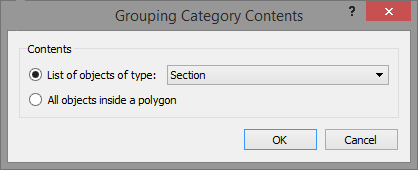
A dialog to select whether the groupings inside the category will contain a list of objects of a specific type or will be the ones inside a polygon will appear.
Grouping Category Editor
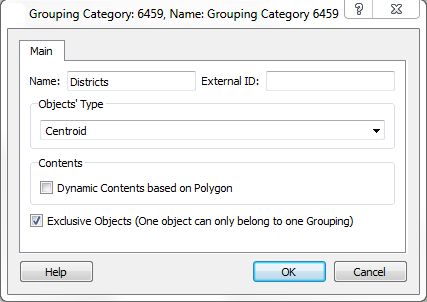
Open the grouping category editor to define the type of objects it will contain.
Select Dynamic Contents based on Polygon to include all objects inside a polygon or unselect it to manually define the list of objects in each Grouping inside the Grouping Category.
If an object can only belong to one Groupings inside the Grouping Category, then check the Exclusive Objects option.
Building a list of grouped objects
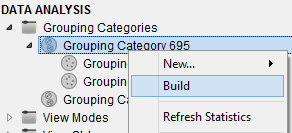
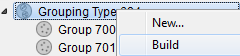
For those Grouping categories with Groupings based on Polygon, the Build option, available in the Grouping Category context menu, will update the list of objects in their polygon-based groupings with all the objects of the defined type located inside each polygon.
Group Editing
Creating a new Grouping
There are two ways to create a Grouping:
- The first option is available from any Grouping Category object New.../Grouping context menu.
- The second option is available from the context menu of a Polygon object. Right click on it and select Convert To/ Grouping. This brings up the following dialog to select the Grouping Category that the new Grouping will use.
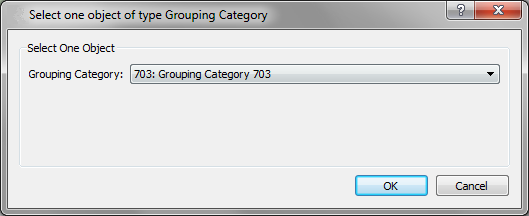
Grouping Editor
Double click on any Grouping object to access the list of objects belonging to the Grouping and edit it. In addition to adding an object to the grouping, it is possible to set an And or Or. Usually all the objects will be added with an And, but for some uses of the Groupings the Or construct can be useful, for example for a Link Analysis of paths that either use a section X or a section Y. Note that And takes precedence over Or.
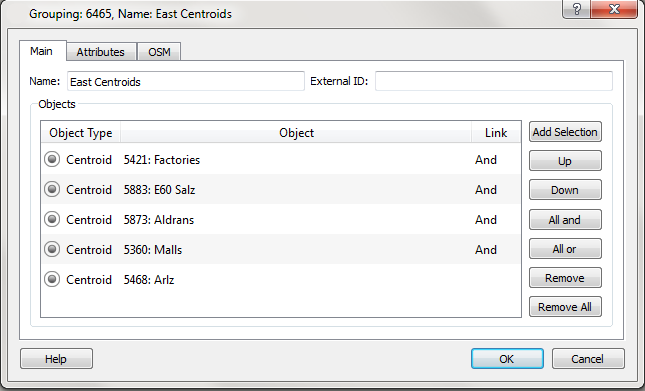
Grouping Object Selection
Objects can be added to a Grouping in four ways:
- Once the Grouping editor is open, by clicking on objects that have the same type than the type defined in the Grouping Category.
- Having selected some objects in the 2D View and clicking Add Selection button in the Grouping editor.
- For those Grouping Objects that are linked to a polygon area, select Build option in the Grouping Category context menu. It will automatically calculate which objects are inside the Grouping areas and add those that belong to the Grouping Category Object Type.
- For those Groupings linked to a polygon area, select Build option in the Grouping context menu. It will automatically calculate which objects are inside the Grouping area and add those that belong to the Grouping Category Object Type.
Grouping Statistics 
The Refresh Statistics option, available in the Grouping Category context menu, calculates for all groupings the aggregation of all available statistics in the Grouping objects, according to each statistic's Time Series aggregation type: Sum, Mean, Weighted Mean, Minimum or Maximum. It is also available at a Grouping level to calculate the statistics for a particular grouping.
The Weighted Mean aggregation type (used for statistics such as Travel Time, Delay Time and Speed) weights each member object's value by its number of vehicles, not by PCU. For an entry-based statistic (e.g. Entry-Based Speed), the entry-based vehicle count is used as the weight; for an exit-based statistic (e.g. Speed), the exit-based vehicle count is used instead — the two can differ for the same object and interval (for example, during a queue build-up), so each statistic is weighted by the count that matches its own entry/exit basis.
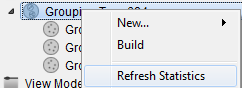
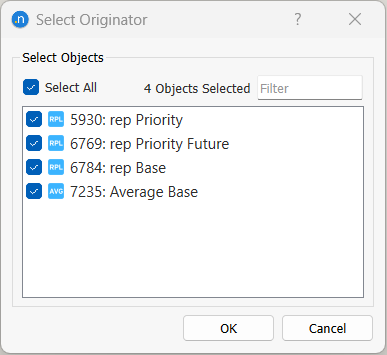
Statistics can be refreshed for all available originators or only a selection of them.