Aimsun Licenser
Aimsun Licenser authorizes your device to use Aimsun modeling software. It is available as an integrated feature in Aimsun Next and as a standalone application.
Aimsun Licenser in Aimsun Next
On Windows and Linux, Aimsun Licenser is accessible from the Account entry in the Help menu. On macOS, the Account entry is located in the Aimsun Next menu.
Aimsun Licenser Standalone
Aimsun Licenser can be downloaded from the downloads section on myAimsun.
First steps
You must have an active Aimsun account to access the Aimsun Licenser application.
If you need help setting up or accessing your Aimsun account, please contact the Commercial Operations Team.
Login
The first time you sign in to Aimsun Licenser, you will need to give your username and password of your Aimsun account.

Licensing a device
After login, the system will display your user information (name, email, and avatar from Gravatar) and your assigned license(s).
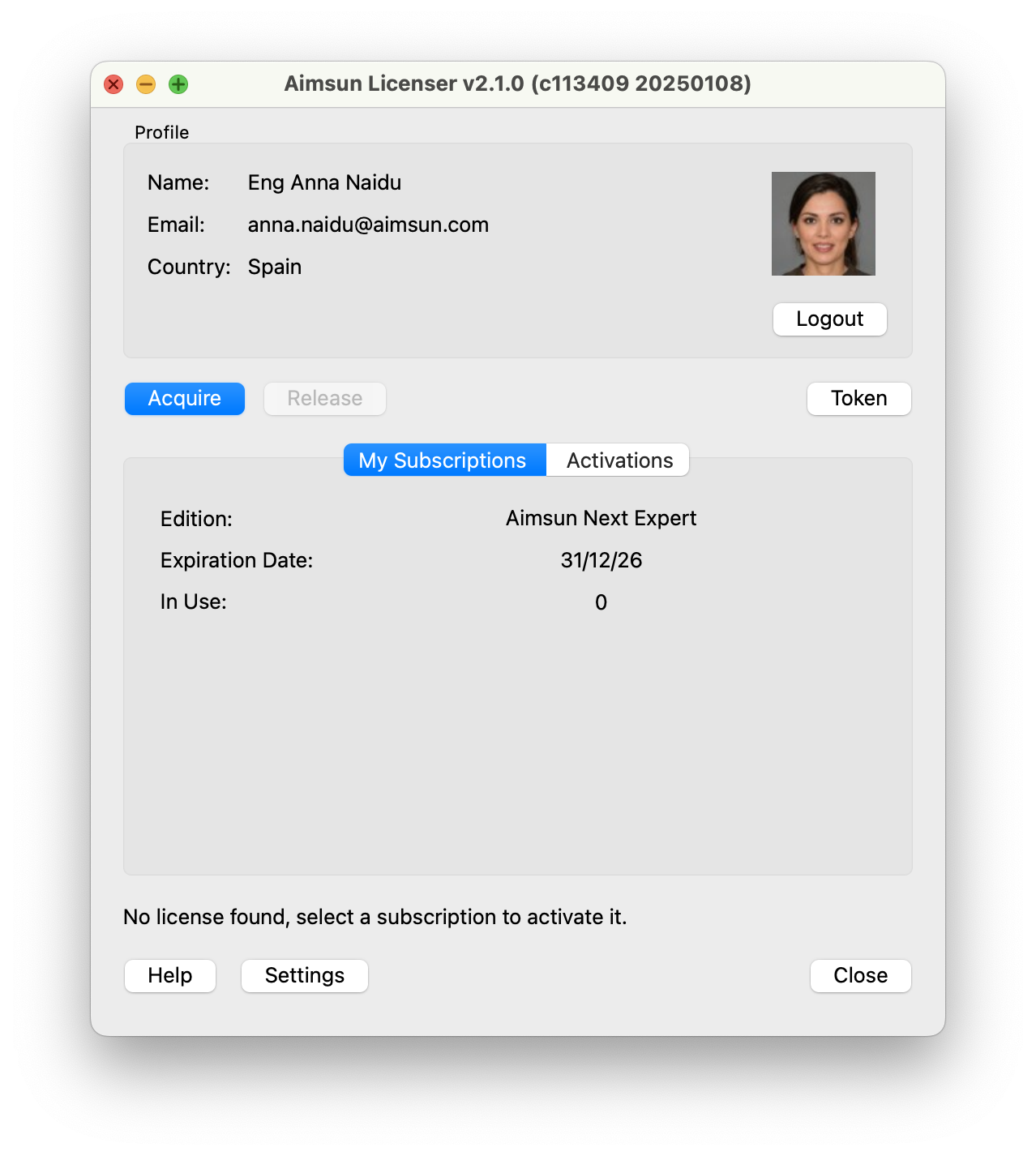
Click on the Acquire button to obtain your license. A license will be installed in your device for up to 30 days. See Renewing your license for more info.
Activations
The Activations tab shows all licensed devices.
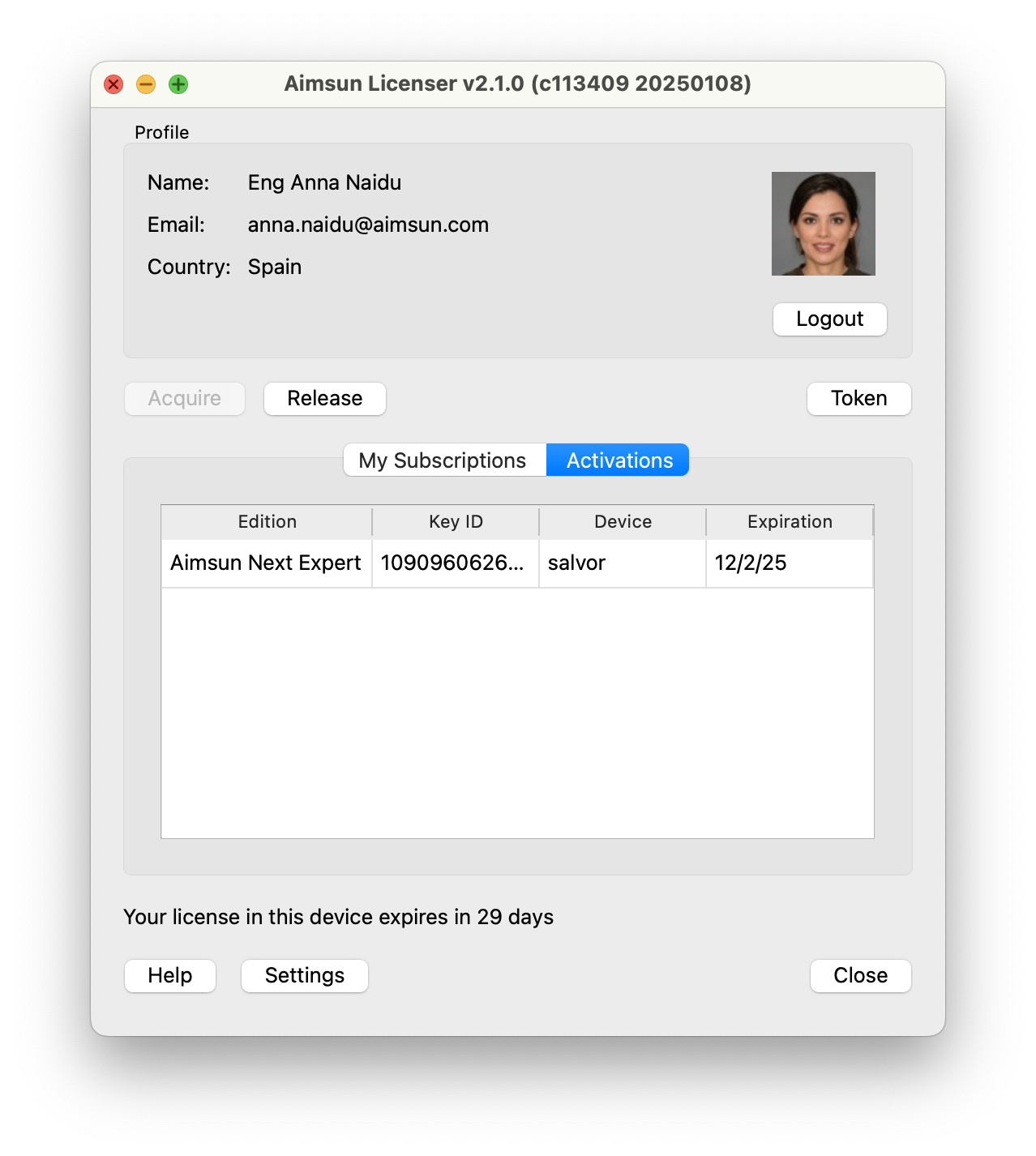
The Expiration columns shows when the installed license will expire in the device. See Renewing your license for more info.
Renewing your license
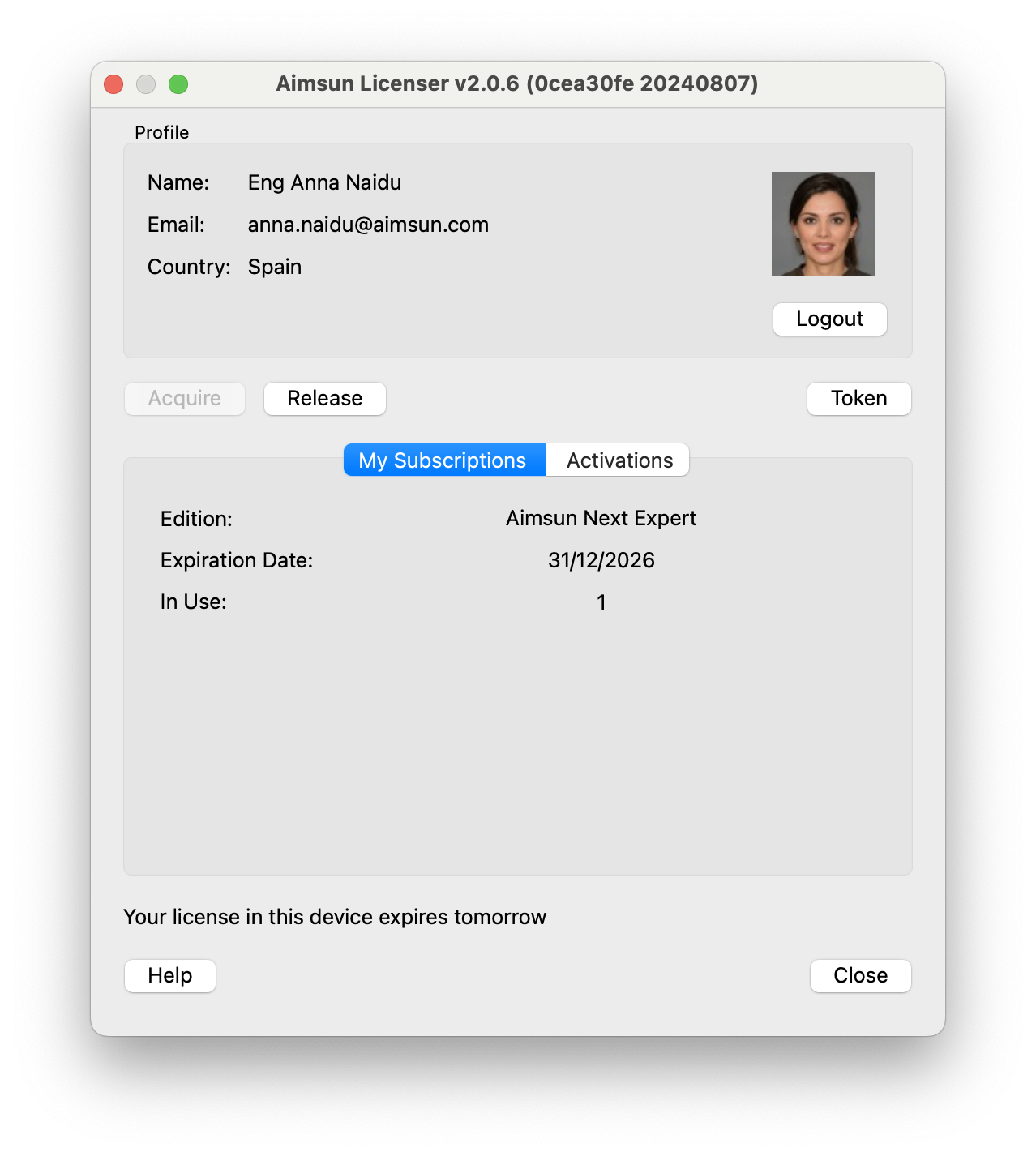
All licenses are valid for up to 30 days; after expiry, your license is renewed the next time you start the Aimsun Licenser application and click on the Acquire button. This license renewal process will repeat until the end of the duration of your licensing contract.
OR
At any moment, Release the license and Acquire it again for another 30 days.
Releasing your license
If you need to release a license before its expiration date, click the Release button. Only licenses that are not in use can be released.
Moving a license to another computer
On the first computer, click Release to free the license. Then, on the second computer, click Acquire to activate it.
Multiple licenses
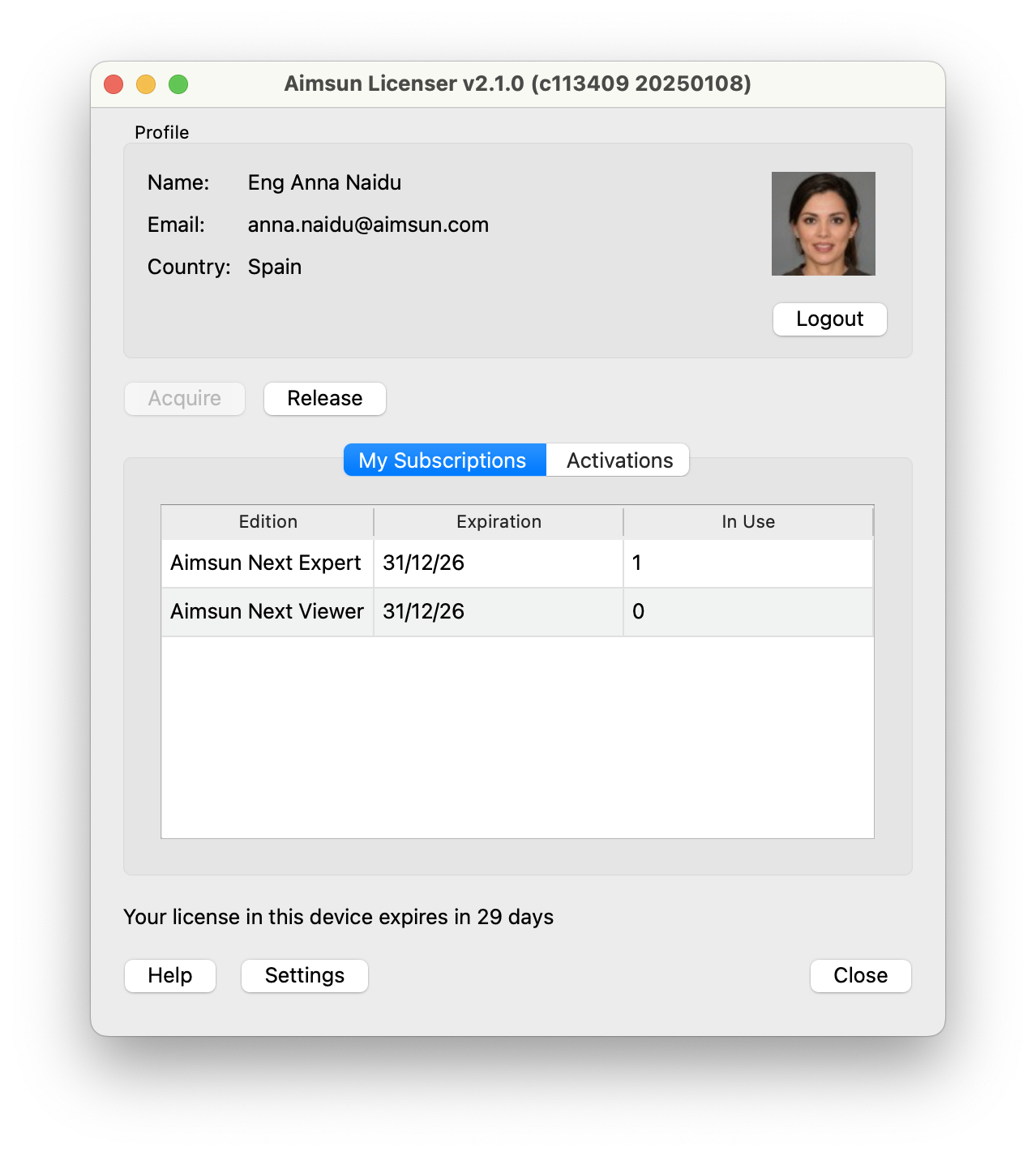
If you have multiple licenses in your Aimsun account, select which license you want to activate by clicking on the relevant line in the table.
Preventing License Sharing
By default, a license installed on one computer can be seen by other computers on the same network. This means other users may access and use that license, preventing the owner from using it. To avoid this, change your local settings by following these steps:
- Open http://localhost:1947/int/config_from.html
- Under Allow Access from Remote Clients, select No one
- Click Submit
Now, other users will no longer be able to access your license.
If you also want to avoid seeing licenses from other computers, follow these steps:
- Open http://localhost:1947/int/config_to.html
- Uncheck Allow Access to Remote Licenses
- Uncheck Broadcast Search for Remote Licenses
- Clear the Remote License Search Parameters text field
- Click Submit
Now, you will no longer see or use licenses from other users.
License Sharing
You can share any number of seats by installing them on a single computer, which will act as your license server. Any computer that can access this server will be able to run Aimsun Next, as long as a free seat is available. Each running instance of Aimsun Next uses one seat.
To allow other users to access the seats from your server, follow these steps:
- Open http://localhost:1947/int/config_from.html
- Under Allow Access from Remote Clients, select All licenses are accessible without need of identity
- Click Submit
On the user’s computer, enable access to remote licenses by following these steps:
- Open http://localhost:1947/int/config_to.html
- Check Allow Access to Remote Licenses
- Click Submit
Settings Window
The Settings window is where you can tweak a few key options for logging, network proxy, and login experience.
Note: Any changes made here require a restart of the app to take effect.
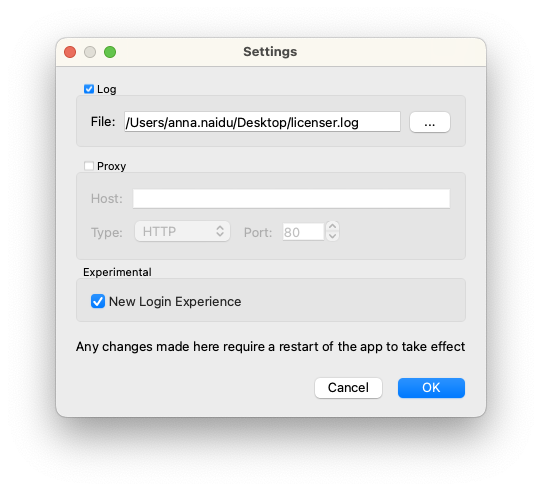
Settings You Can Adjust
1. Turn on Logging
Keeps a record of the app’s activity and any issues that pop up.
- Options:
- Checked: Enables logging.
- Unchecked: Disables logging.
- Where to Save Logs:
- If logging is on, you can choose the file location where the app will save these logs.
2. Use a Proxy
Routes the app’s internet connections through a network proxy.
- Options:
- Checked: Enables the proxy.
- Unchecked: Disables the proxy.
- Proxy Details (if proxy is on):
- Hostname: Enter the address of the proxy server.
- Proxy Type: Pick HTTP or SOCKS 5.
- Port: Specify the port number for the proxy.
3. Try the New Login Experience
Switches to an updated login style with better visuals and security.
- Options:
- Checked: Turns on the new login experience.
- Unchecked: Keeps the old login style.
How to Open
- Open Settings from the main window.
- Make any changes you want.
- Click OK to keep your changes, or Cancel to back out without saving.
Troubleshooting
Your license expires tomorrow
This message refers to the renewal period of the seat. As indicated previously in this manual, seats need to be reactivated every 30 days.
No Subscriptions
Your administrator needs to assign a seat to you in the my.aimsun.com portal. Once assigned, it will appear under Subscriptions > My Subscription, and you will be able to activate the seat on your computer using the Aimsun Licenser.
To assign a seat to a user, go to the User section of the Admin Portal, click Manage next to the user, navigate to Subscriptions, and assign a seat.
You can find more information in the myAimsun Admin Manual.
Cannot Connect to the Server
This error occurs when Aimsun Licenser cannot connect to Aimsun's cloud servers to log in or retrieve licenses.
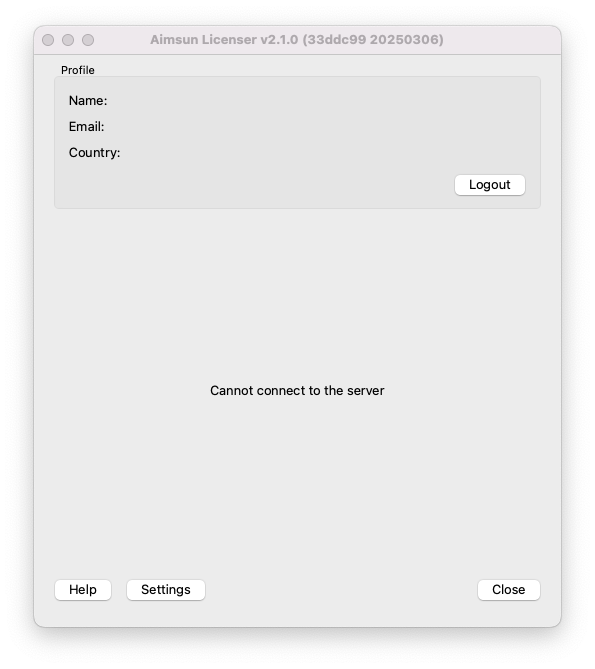
If your network uses a proxy, enable the proxy option in Settings.
If you do not use a proxy or the issue persists, your network may be blocking access to our servers due to a firewall, antivirus, or security software. Please contact your IT team to whitelist the following domains (all of which use port 443):
| Domain | Description | More information |
|---|---|---|
| my.aimsun.com | myAimsun user portal | https://my.aimsun.com |
| admin.aimsun.com | myAimsun admin portal | https://admin.aimsun.com |
| api.aimsun.com | Aimsun APIs (profile, licenses, etc.) | |
| auth.aimsun.com | Aimsun authentication server | |
| login.aimsun.com | Aimsun login server | |
| cognito-idp.eu-central-1.amazonaws.com | AWS Cognito authentication | https://aws.amazon.com/es/cognito/ |
| *.cloudfront.net | AWS Cognito authentication UI | https://aws.amazon.com/cloudfront/ |
| *.ingest.sentry.io | Error reporting | https://sentry.io/welcome/ |
| www.gravatar.com | Used to display public avatars | https://gravatar.com/ |