Welcome to myAimsun
Welcome to the myAimsun portal, your central hub for managing Aimsun software, subscriptions, and collaborative projects. Three steps to get started:
- Set up your identity. Visit the Profile section to verify your contact details and activate Multi-factor Authentication (MFA) to secure your account.
- Install your software. Open the Downloads area to get the latest version of Aimsun Next or the Aimsun Licenser.
- Activate your license. Check your Subscriptions to see your assigned seats, then use the Aimsun Licenser on your computer to activate the product.
Profile
The Profile area lets you update your name and contact information. Edit the text fields and click Save.
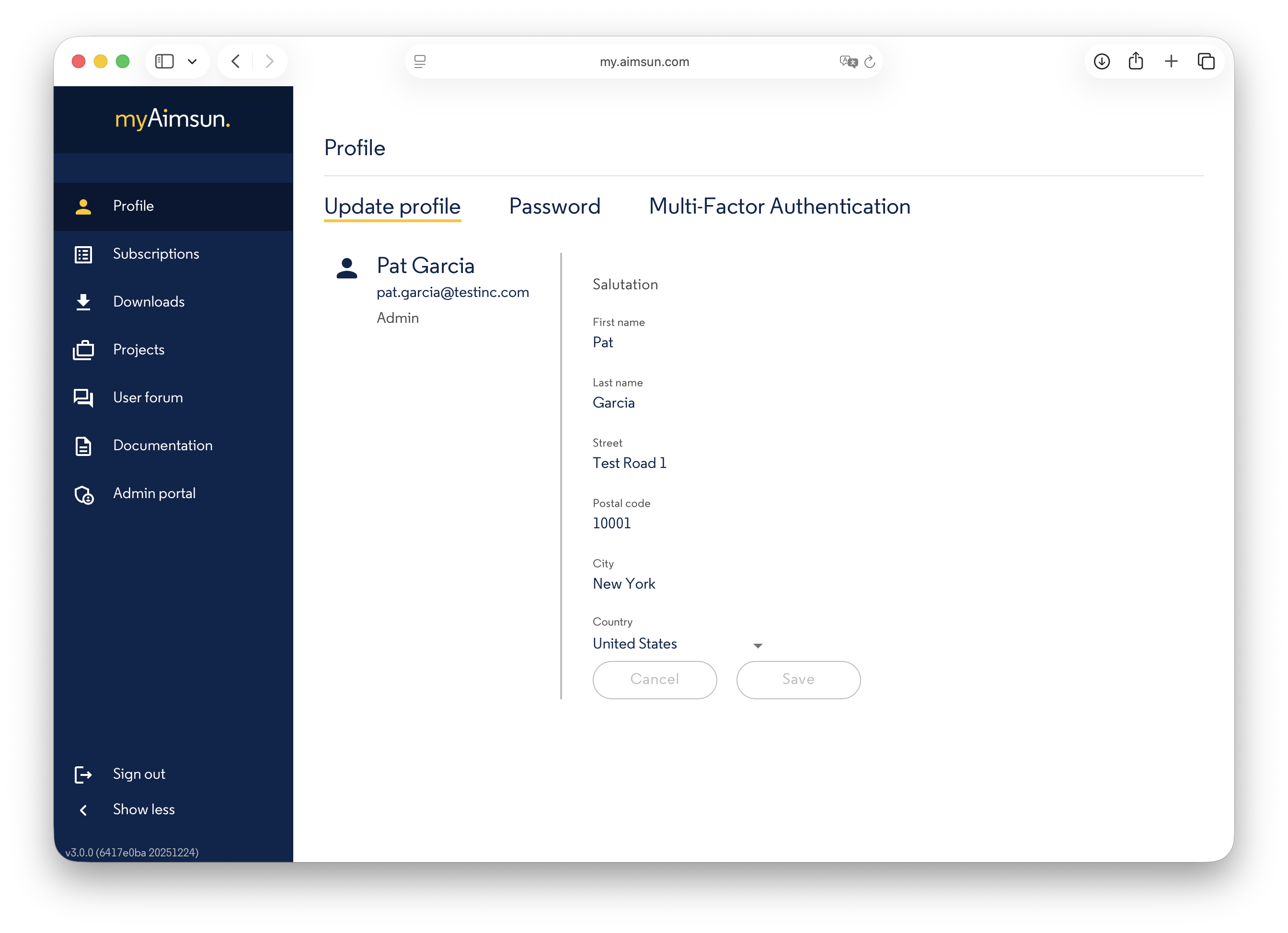
Password
Use the Password section to update your account credentials.
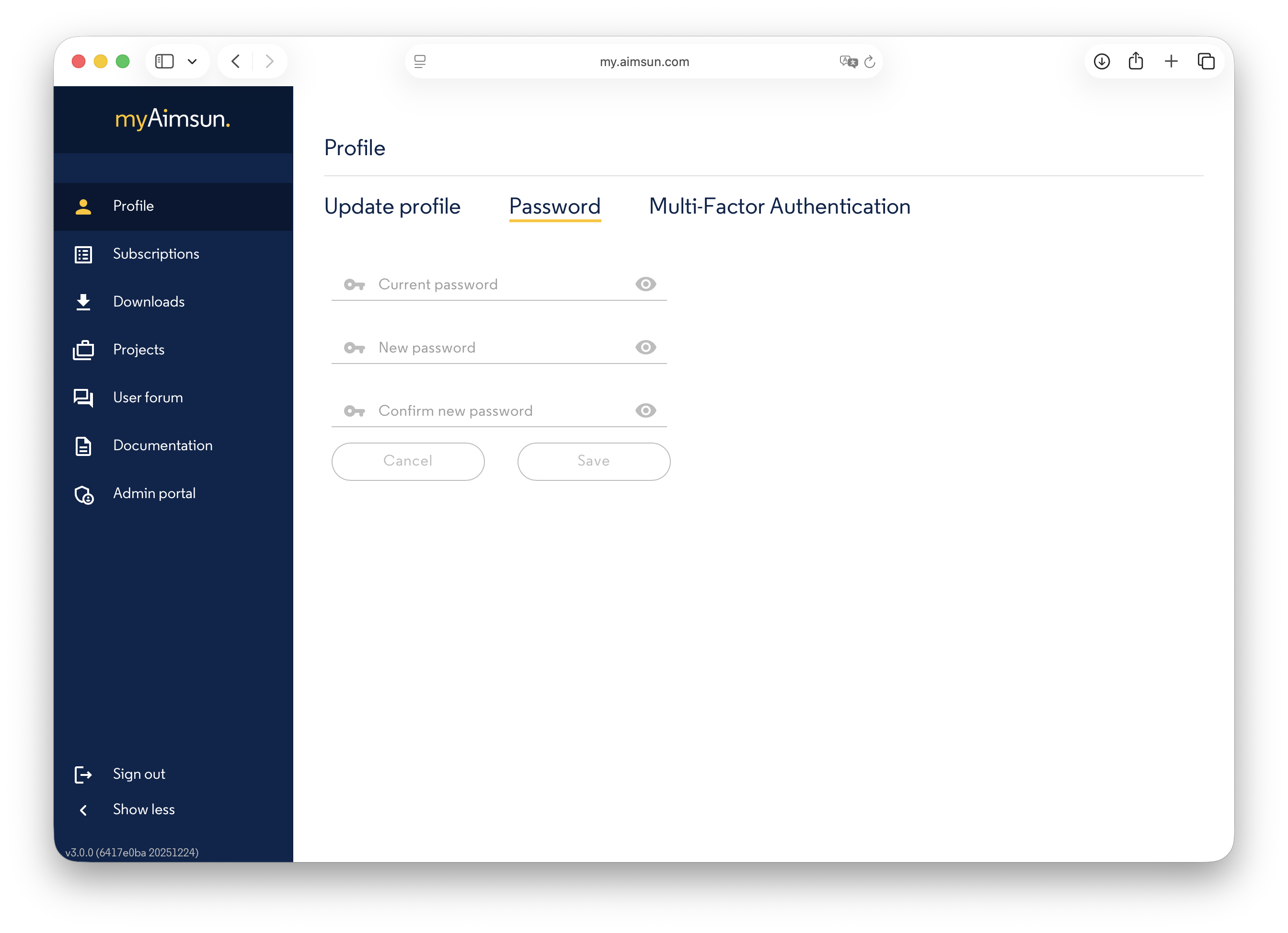
Multi-factor Authentication
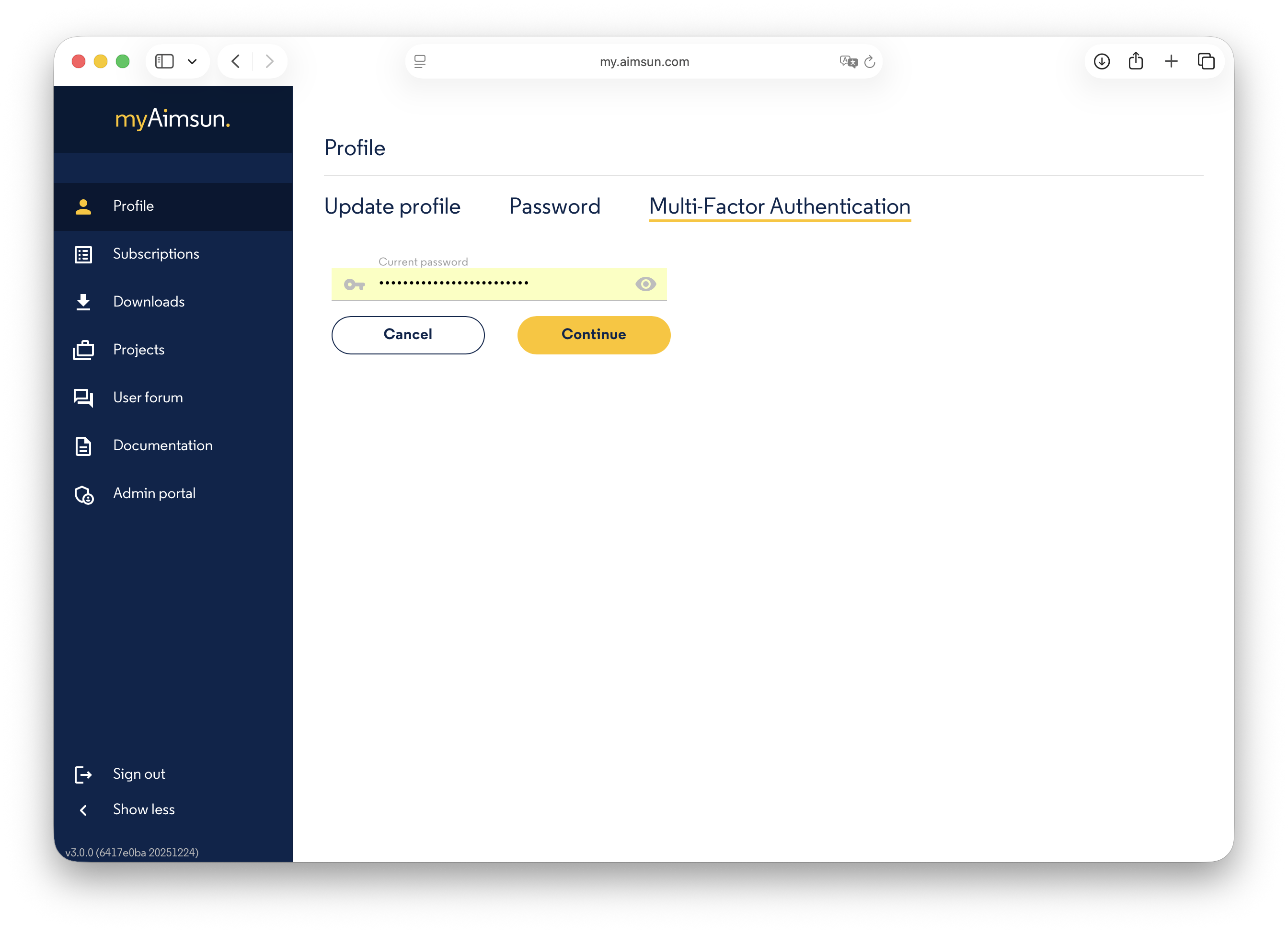
Use the Multi-factor Authentication section to activate this highly recommended security feature. Enter your current password to start:
Link your mobile device to your myAimsun account using an authenticator app. We recommend:
- Microsoft Authenticator
- Twilio Authy
- Google Authenticator
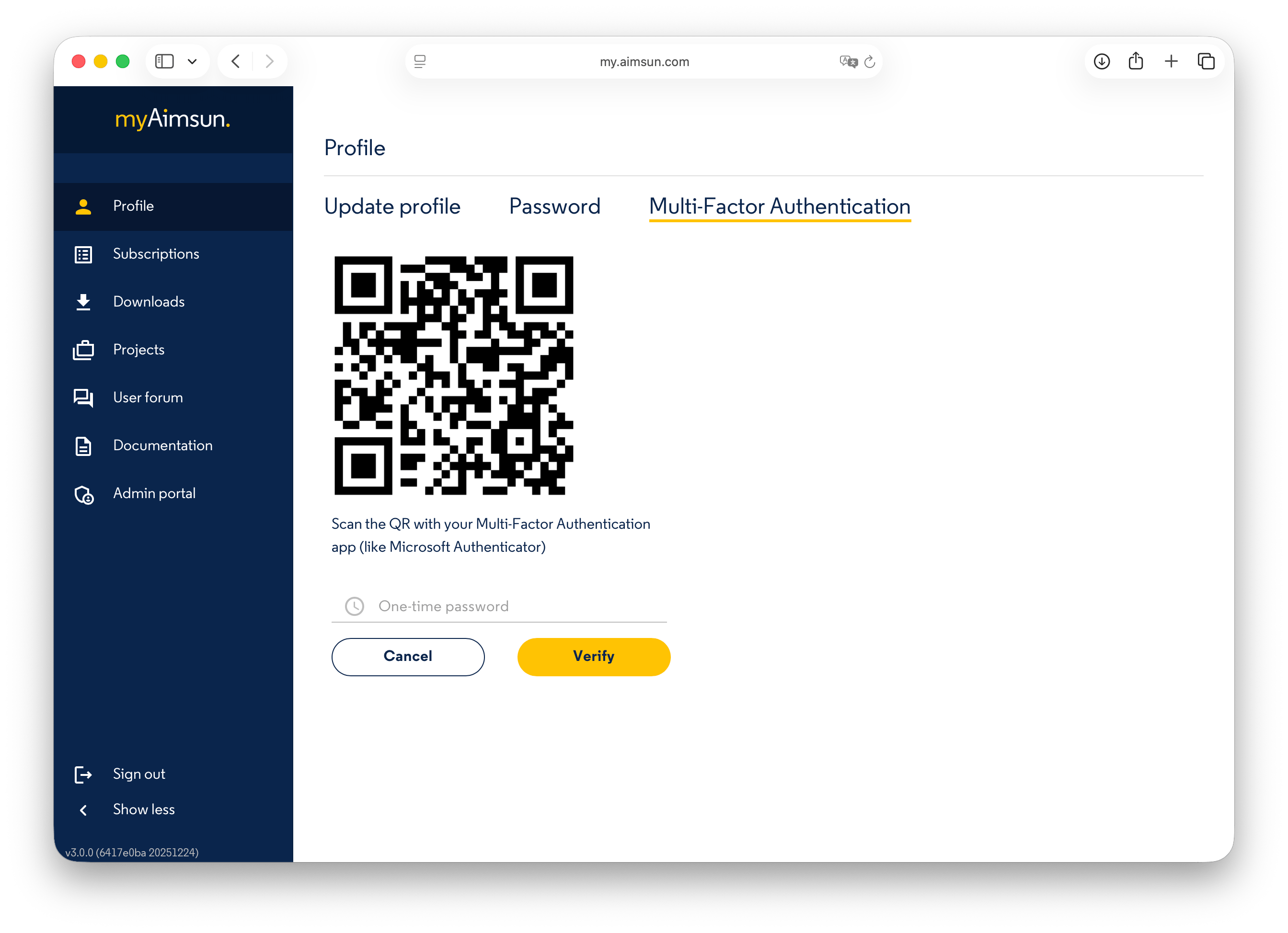
To finish, scan the QR code and enter the generated one-time password (OTP).
Subscriptions
The Subscriptions area shows the seats assigned to you and the renewal date of each subscription. For standard users this list is read-only; it is managed by your Company Administrator through the myAimsun Admin portal.
If your company purchased a subscription from a distributor, that subscription appears here too — the buyer-side view does not reveal the distributor's contract details, only the seats your admin assigned to you.
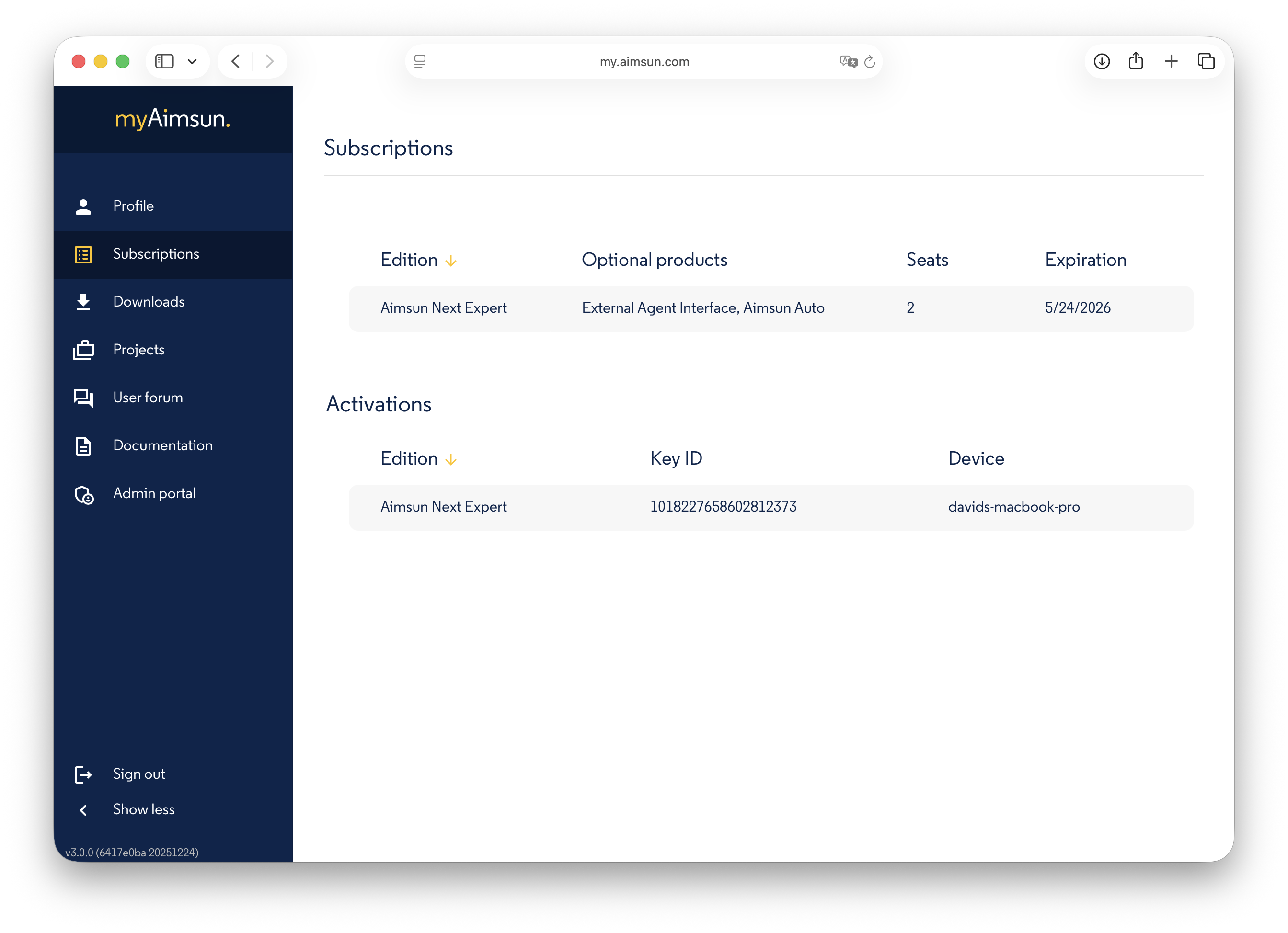
Activations
The Activations list below records the computers that currently hold a license for each of your seats. Each row shows the product, the Sentinel key, and the hostname of the licensed machine.
If a computer that should hold a license is missing from this list — for example after a reinstall — open the Aimsun Licenser. It can detect the orphan state on the local machine and request a one-off grace activation to recover the seat without admin intervention. See the Aimsun Licenser manual for the full recovery flow.
To activate a new seat, open the Aimsun Licenser. The tool is available as a separate download from the Downloads area.
Downloads
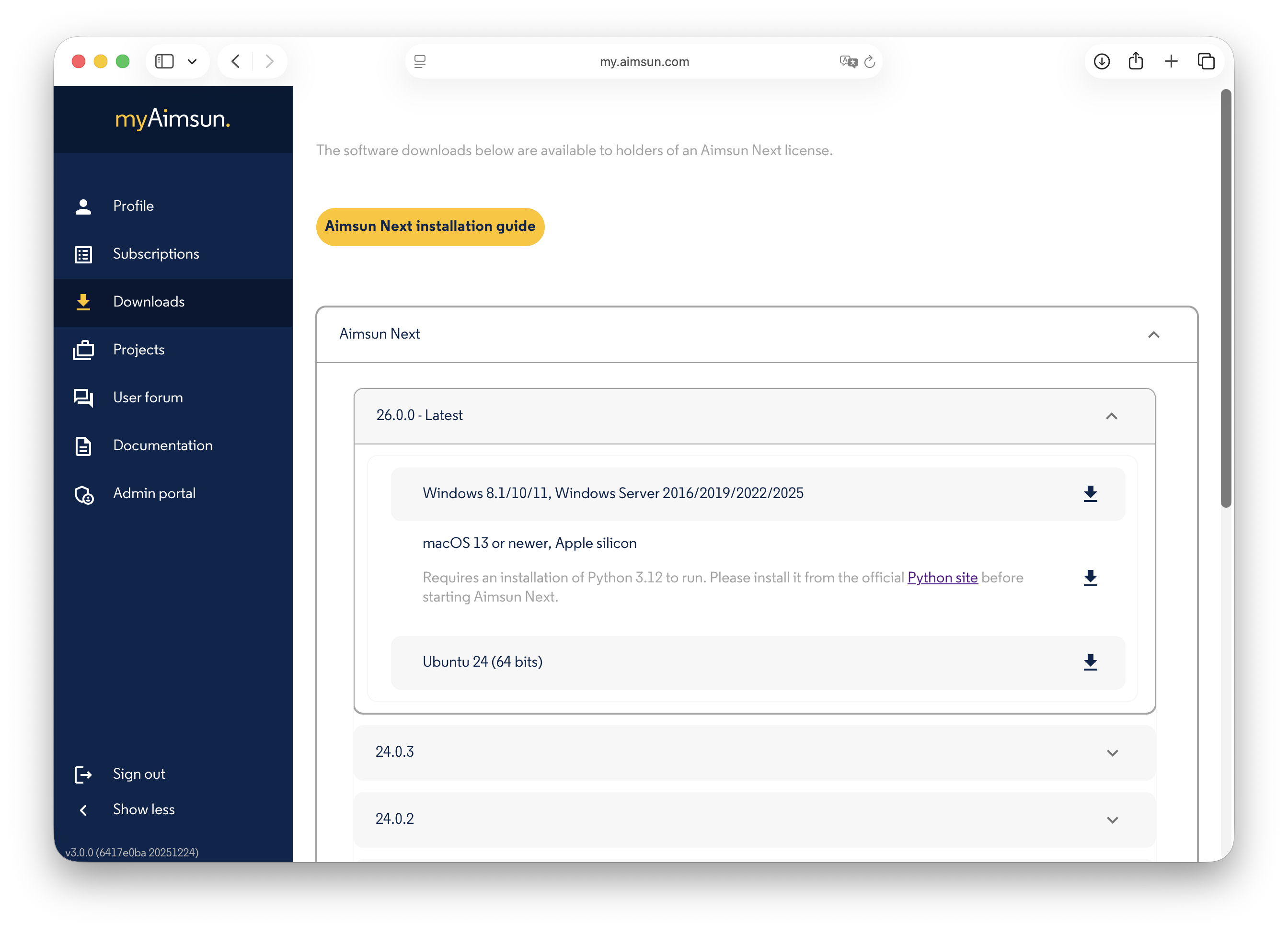
In the Downloads area you can fetch the latest versions of Aimsun products for installation on your local computer.
Pick a product, a version, and a variant (operating system / installer flavour). Depending on the product, you may need to acknowledge platform requirements (Sentinel HASP runtime, OS prerequisites) or accept the Aimsun Licenser companion before the Download button activates. Once every checkbox is ticked, the button becomes clickable.
Projects
The Projects area lists every project you can access and lets administrators create new ones.
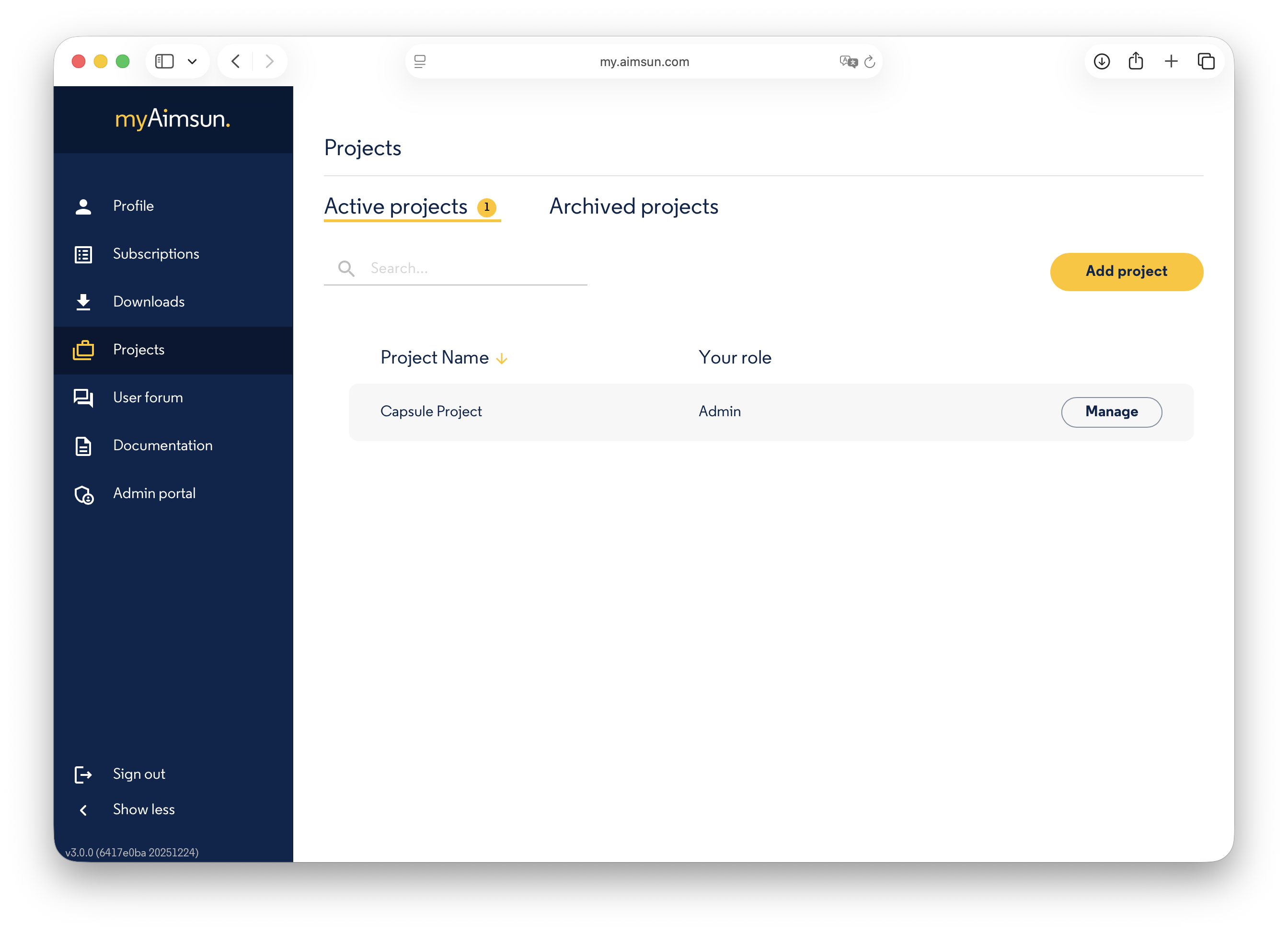
A project serves two primary functions:
- Aimsun Solution — manage and control site access.
- Aimsun Next — enable map-based comments and the Check and Fix functionality.
User Management
Click Manage to open the project's management panel, then Add User to invite a new user to the project.
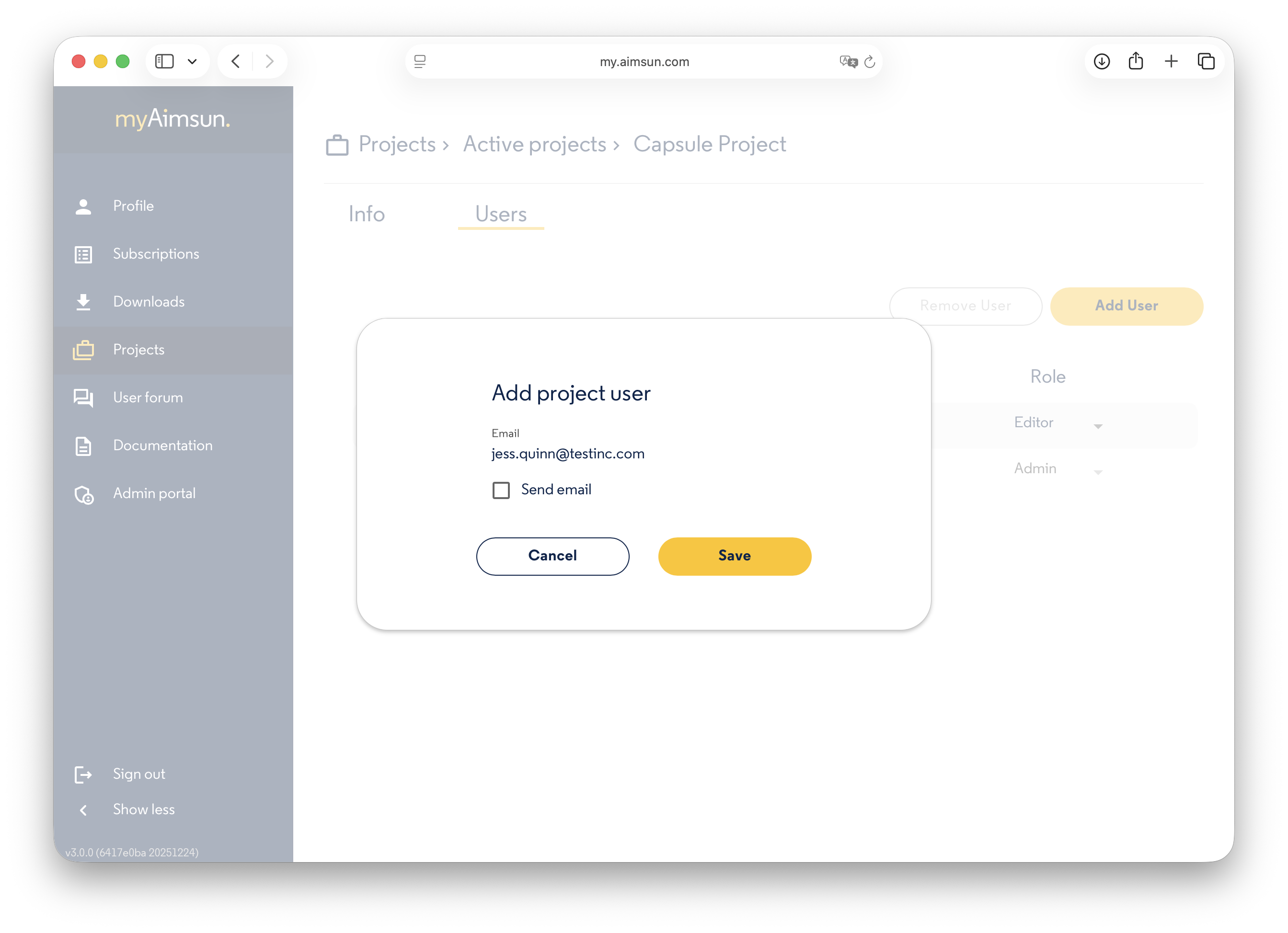
Use the role dropdown to change a user's permissions.
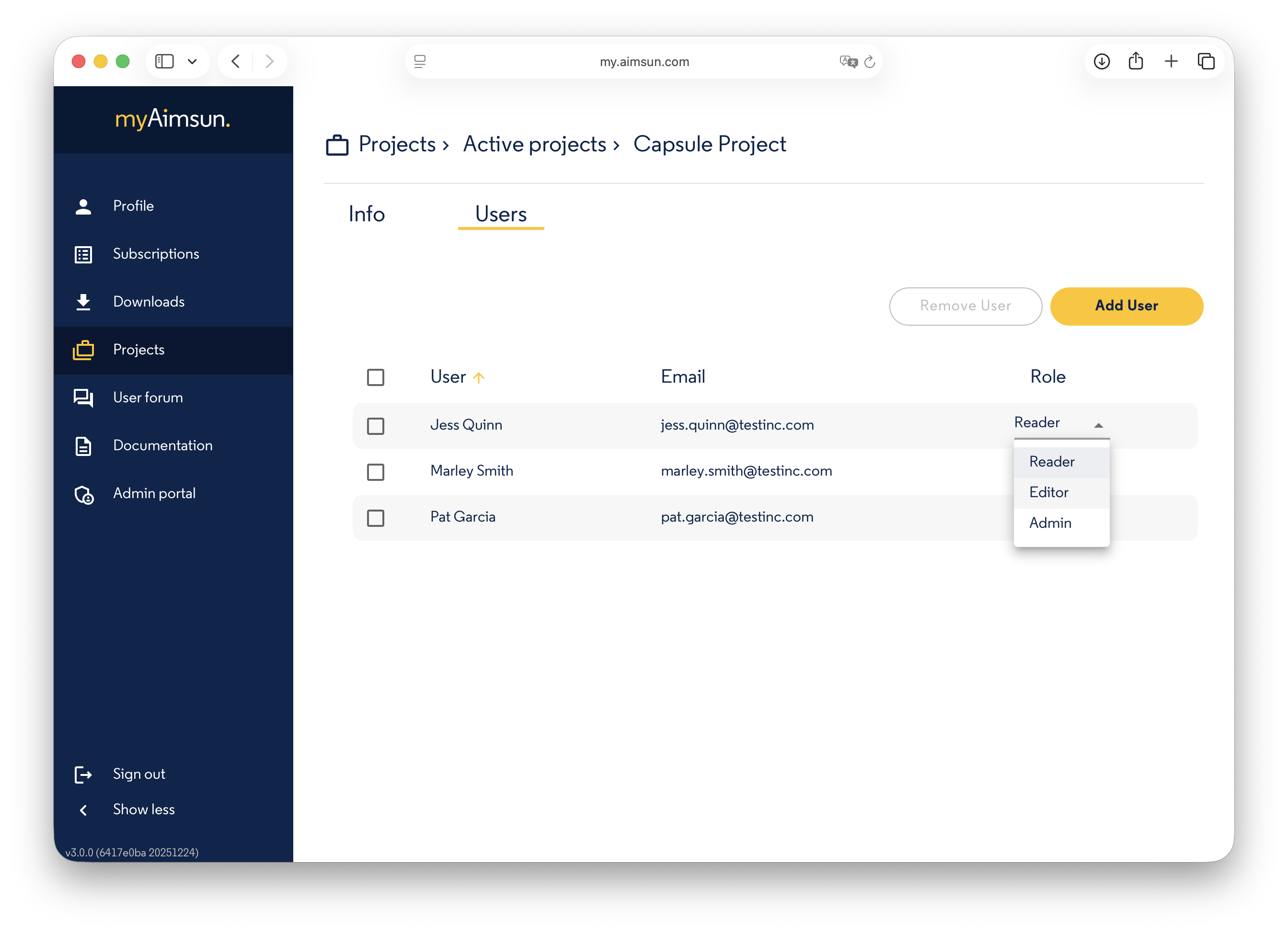
Project Role Permissions
| Capability | Administrator | Writer | Reader |
|---|---|---|---|
| Read access | ✅ | ✅ | ✅ |
| Write access | ✅ | ✅ | ❌ |
| Manage project users | ✅ | ❌ | ❌ |
| Archive project | ✅ | ❌ | ❌ |
Aimsun Next Integration
Once a project exists, the administrator can associate it with an Aimsun Next document. See the Aimsun Next User Manual for the Check and Fix Tool and Geo Comments.
Aimsun Next User Forum
Click this icon to open the Aimsun Next User Forum in a new browser window. You can log in with your myAimsun credentials.
Documentation
Click this icon to open the Aimsun Doc Hub in a new browser window.