Path Analysis Tool
The Path Analysis Tool is used to inspect the routing in the traffic assignment (either static or dynamic) to gain insight into the behavior of drivers in the traffic network.
The two main tabs are:
-
Path Assignment: Examines the use and costs of the paths in the network. This tab is available in the replication or result editor for dynamic scenarios and in the experiment editor for static scenarios. This information is available provided the option Keep in Memory in the Scenario Outputs to Generate folder is checked, or whenever the APA file is available for retrieval.
-
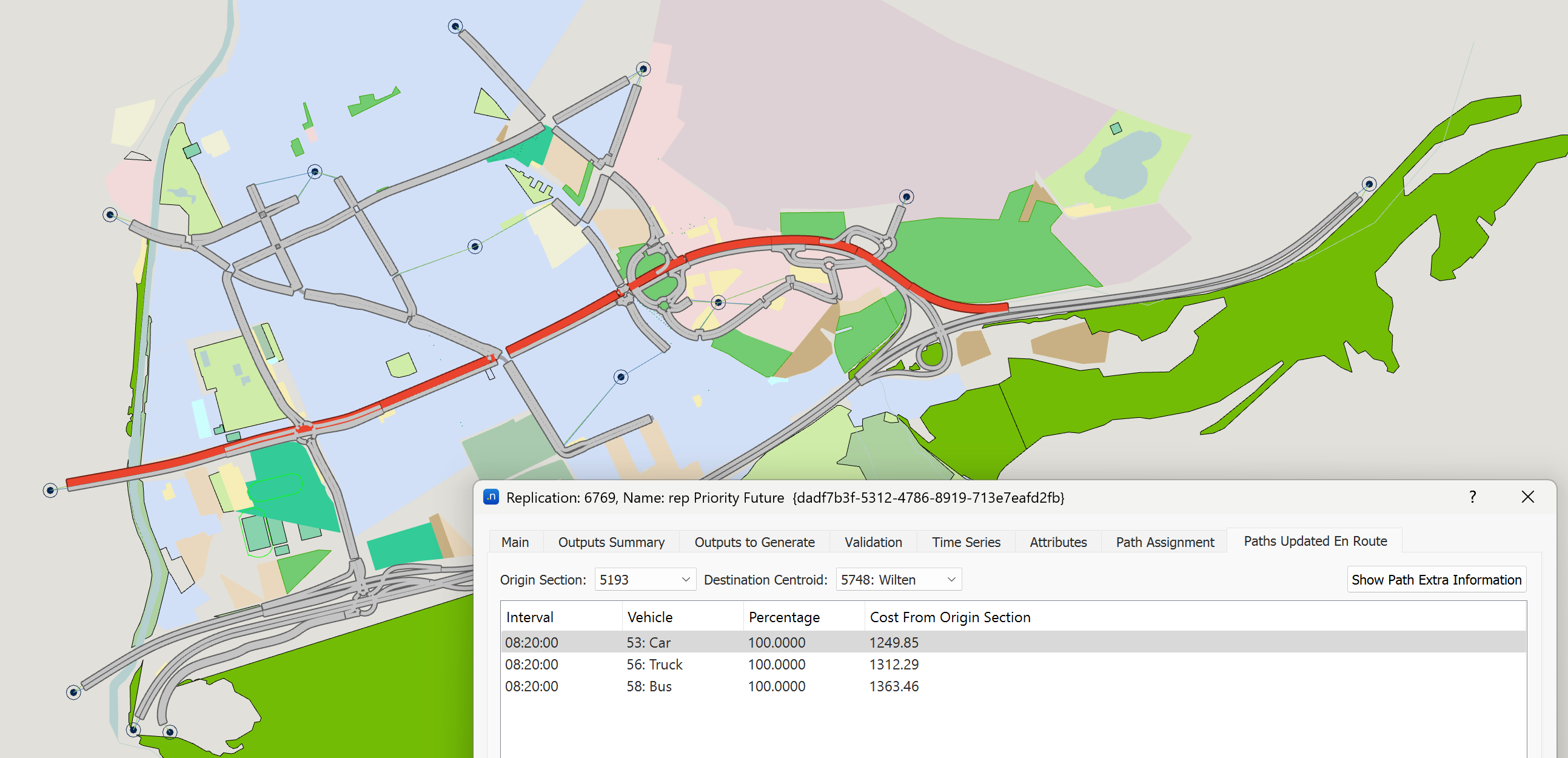
Paths Updated En Route: Shows the shortest paths being considered from any section to a destination centroid according to the stochastic route choice. This tab is available in the replication or result editor for dynamic stochastic experiments. This information is available during the simulation, provided the option Keep in Memory in the Scenario Outputs to Generate folder is checked.
Path Assignment
This tab, in a dynamic replication/result or a static assignment experiment, is used to access the path assignment information. The information displayed differs depending on the assignment approach. When the assignment approach is Dynamic Traffic Assignment, the information can be visualized either during the simulation or at the end of the simulation. During the simulation, only the path assignment for the current interval is displayed. At the end of the simulation by default the dialog displays all intervals including the warm-up period (All (warm-up included)), but individual intervals can also be selected. In a Static Assignment, the information can only be viewed after the assignment has been run.
The tab contains a table that can show all paths information, although by default it will appear empty, as in order to show data in the table the List Paths checkbox must be activated.
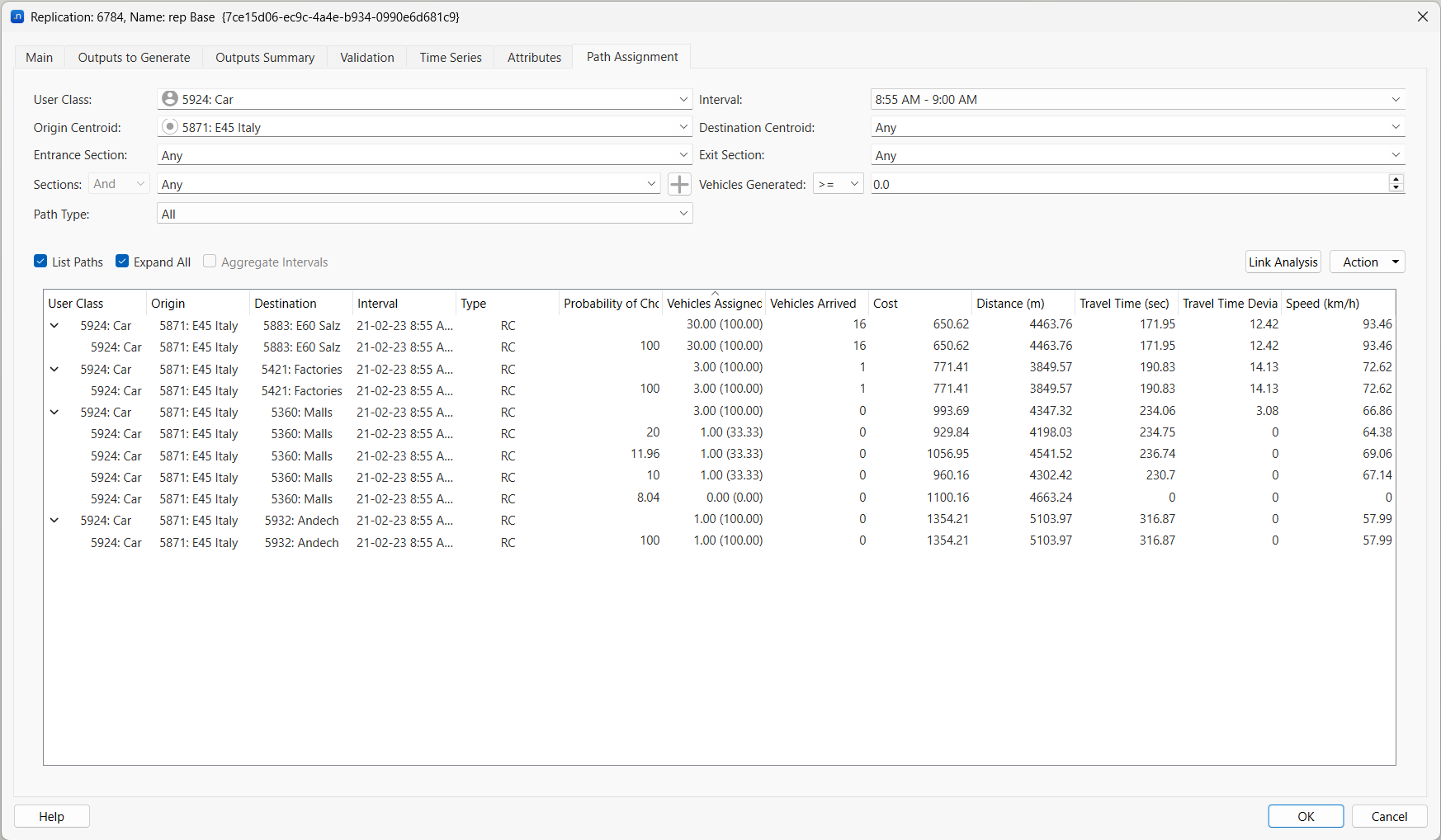
There are some filters which can be applied, to show paths by:
- User class: When the route choice takes into account different vehicle types for calculating the shortest path trees, this filter is applied to display only those paths related to a specific user class.
- Interval: Select one or more route choice intervals to include in the analysis. Two shortcuts are available at the top of the list: All (warm-up included) and All (warm-up excluded). By default, the last interval is selected. The mouse wheel and arrow keys can be used to cycle through items when the list is closed.
- Origin Centroid: Select an origin centroid from the 2D view or select one from the drop down list.
- Destination Centroid: Select a destination centroid from the 2D view or select one from the drop down list.
- Entrance Section: When a centroid has more than one entrance connection, the different connections are considered as different sources of entrance vehicles. This filter can be used to display only those paths that are using a specific entrance section selected from the dropdown list of by clicking in the 2D window.
- Exit Section: The same capability can be used to select paths by exit section.
- Sections: This filter is used to show all paths that are using a selected section or a list of sections or a grouping of sections.
- Vehicles Generated: Select all the paths with more than or less than a specified flow.
- Path Type: Select paths by type. Vehicles might be following a path according to one of these sources:
- RC: Route choice using the route choice method selected for path calculation in this simulation.
- PAR: Path assignment result.
- ODR: Origin/Destination route.
- TRJ: Trajectory path.
Vehicles on a Trajectory path (TRJ) are using paths that are different from their initial path. The change might be due to a missed turn in a microsimulation (eventually becoming lost) or finding a better path after the periodic route choice calculations (Path Updated En Route). A vehicle might also change to a TRJ path when forced to by a Traffic Management action such as closed turn or a destination change.
Once the filters have been selected, the display options are:
- List Paths: List the trips in the table. There will be one summary row per OD pair, vehicle type and interval, which can be expanded to show the multiple paths available. Clicking on the summary row on the table shows all the corresponding paths in the 2D view, in different colors, overlaid on the same road section where required. Clicking on a path, it will be colored in the 2D view, and by pressing Shift and clicking on more paths, they will be added to the 2D visualization.
- Expand All: Expands all the trips in the table to show the paths.
- Aggregate Paths. For Static assignments, when using a Incremental, MSA or Frank&Wolfe assignment method, Aimsun Next can show full set of paths in the order they have been obtained for each iteration or can be aggregated to show unique paths with the final usage percentages.
- Aggregate Intervals: Aggregates the path use for the whole simulation and removes the breakdown by time interval.
For each OD pair, the following information is displayed:
- User Class
- Origin and Destination Centroid
- Interval: The time interval. This is not shown if "Aggregate Paths" is selected.
- Paths Type: If the type is Mixed, several types of path have been used for that OD pair.
- Vehicles Assigned: The number of trips generated for that OD pair, vehicle type and interval.
- (dynamic) Vehicles Arrived: The number of vehicles that have completed their path in that interval, regardless the interval at which they were generated.
- (dynamic) Cost: The cost of the paths in use weighted by the Vehicles Assigned per path. The default unit is seconds. When the simulation is a stochastic route choice, the costs are based on the previous interval(s) travel time. When the simulation is a dynamic user equilibrium, there are different options to update the cost based on travel time.
- (static) Cost: The average cost of the paths in use weighted by the Vehicles Assigned per path. The path cost is obtained adding the VDF, TPF and VDF for all connections, sections and turns in the path.
- Distance: The average distance (meters or feet) of the used paths weighted by the Vehicles Assigned per path (centroid connections are not included in the distance calculation).
- (dynamic) Travel Time: The average travel time in seconds experienced in the simulation by the Vehicles Assigned. It includes the waiting time in virtual queue. For those vehicles that have been generated in the interval but couldn’t finish their trip in the same interval (Assigned but not Arrived) the 'experienced' travel time is the current path travel time plus an estimation of the remaining travel time based on the links travel time of the last interval.
- (dynamic) Travel Time Deviation: The standard deviation of the weighted average travel time for a dynamic assignment.
- (dynamic) Speed: Distance divided by Travel Time, converted to the corresponding units (km/h or mi/h), applied to summary values or to each path.
- Function Components: The weighted average of the total values after adding the function component for each connection, section, turn of each path.
- Derived Function Components: Operation that defines the derived component, applied to summary values or to each path.
When expanding each OD pair, the same information as per OD pair is displayed independently for each path. In addition, these two are now detailed: - Path Type: Whether the path is RC, PAR, ODR or TRJ. - Probability of Choice: The probability of a vehicle choosing that path within the OD pair paths, according to the route choice calculations.
Detailed information of a path
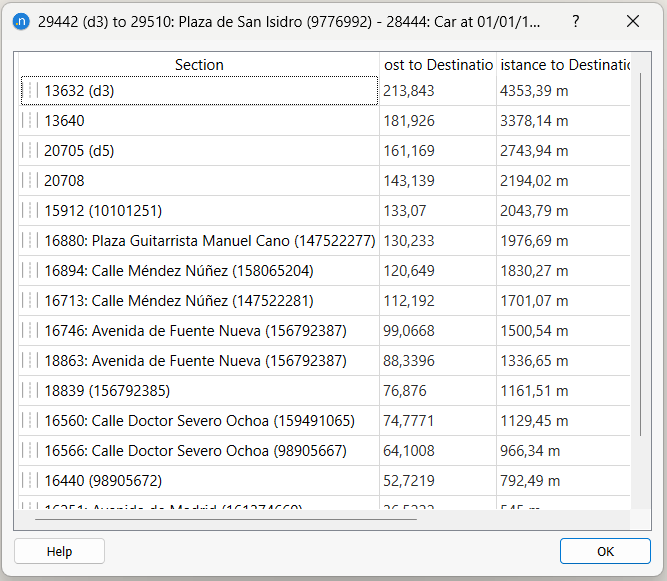
The detailed information of a path can be obtained by double clicking on a path. This brings up a dialog with the total cost and distance from each section of the path to the destination. It also computes the remaining value to destination for any function component.
Actions
The actions that can be undertaken with the Path Analysis Data are:
- Create Routes from selected paths: This option creates OD Routes from the selected set of paths placing them in the OD Routes section of the Demand Data in the Project Folder.
- Create Routes from all paths: Creates OD Routes for all paths in the path analysis.
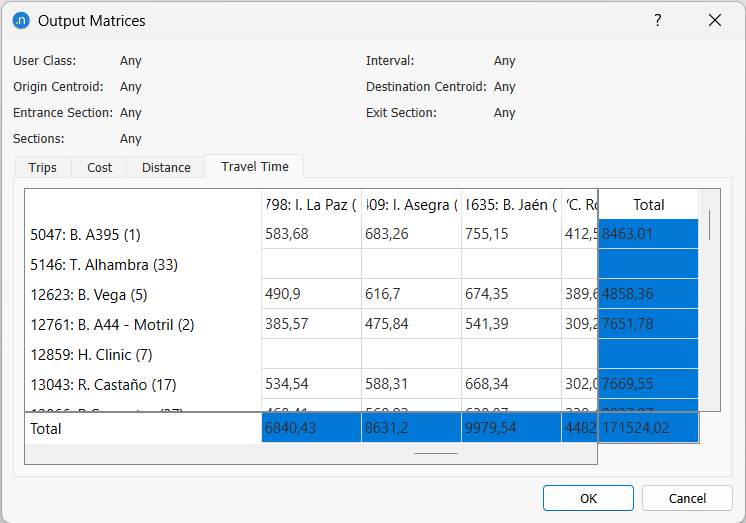
- Output Matrices: This option creates the skim matrices using the current filter values. There are four basic output skim matrices: trips, cost (as calculated with the current path assignment method), distance and, for dynamic simulations, simulated (experienced) travel time. In addition, also the matrices corresponding to the Function Components defined will be calculated.
- Copy Data: This option copies the data in the paths table to the system clipboard, from where it can be pasted into other analysis software, i.e. a spreadsheet.
- Save and Retrieve Link Analysis: Saves the current link analysis into an ALA file in a linkAnalysis directory.
Link Analysis
A link analysis of a selected section, list or grouping of sections can be performed by clicking the Link Analysis button. A view mode to show the link analysis information is created and all paths going through the selected set of sections are shown with the volumes linked to those paths. By checking the Link Analysis checkbox, the view mode is switched to one where all the paths in the list are colored in red and the width of the bars on the sections with volumes is proportional to the volume on them.
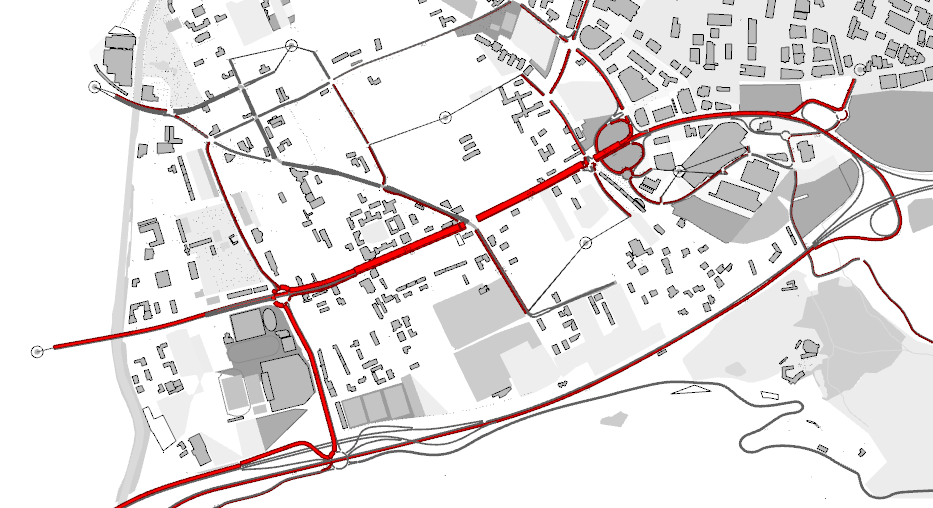
The View Styles included in the Link Analysis View Mode are:
- A style for the width of each section, proportional to its volume.
- A style for the color: used sections are painted in red.
- A style for the label of the assigned volumes on the sections.
En Route Path Assignment Update Information
When a vehicle reassigns its path during its trip, the decision is taken using probabilities calculated by the Route Choice model.
The Paths Updated En Route tab folder is located in the replication editor. Select an origin section and a destination centroid, either from the 2D map or from the dropdown boxes in the dialog tab. The table will display, for each vehicle type (and each exit connection if the destination centroid has destination percentages set) all shortest paths currently being considered by the simulation that go from the selected section to the destination centroid, each with its current cost and an associated probability of choice calculated applying the stochastic route choice model set in the experiment.