Welcome to myAimsun
Welcome to the myAimsun portal, your central hub for managing Aimsun software, subscriptions, and collaborative projects. Follow these three steps to get started:
- Set Up Your Identity: Visit the Profile section to verify your contact details and activate Multi-factor Authentication (MFA) to secure your account.
- Install Your Software: Navigate to the Downloads area to get the latest version of Aimsun Next or the Aimsun Licenser.
- Activate Your License: Check your Subscriptions to see your assigned seats, then use the Aimsun Licenser tool on your device to activate your product.
Profile
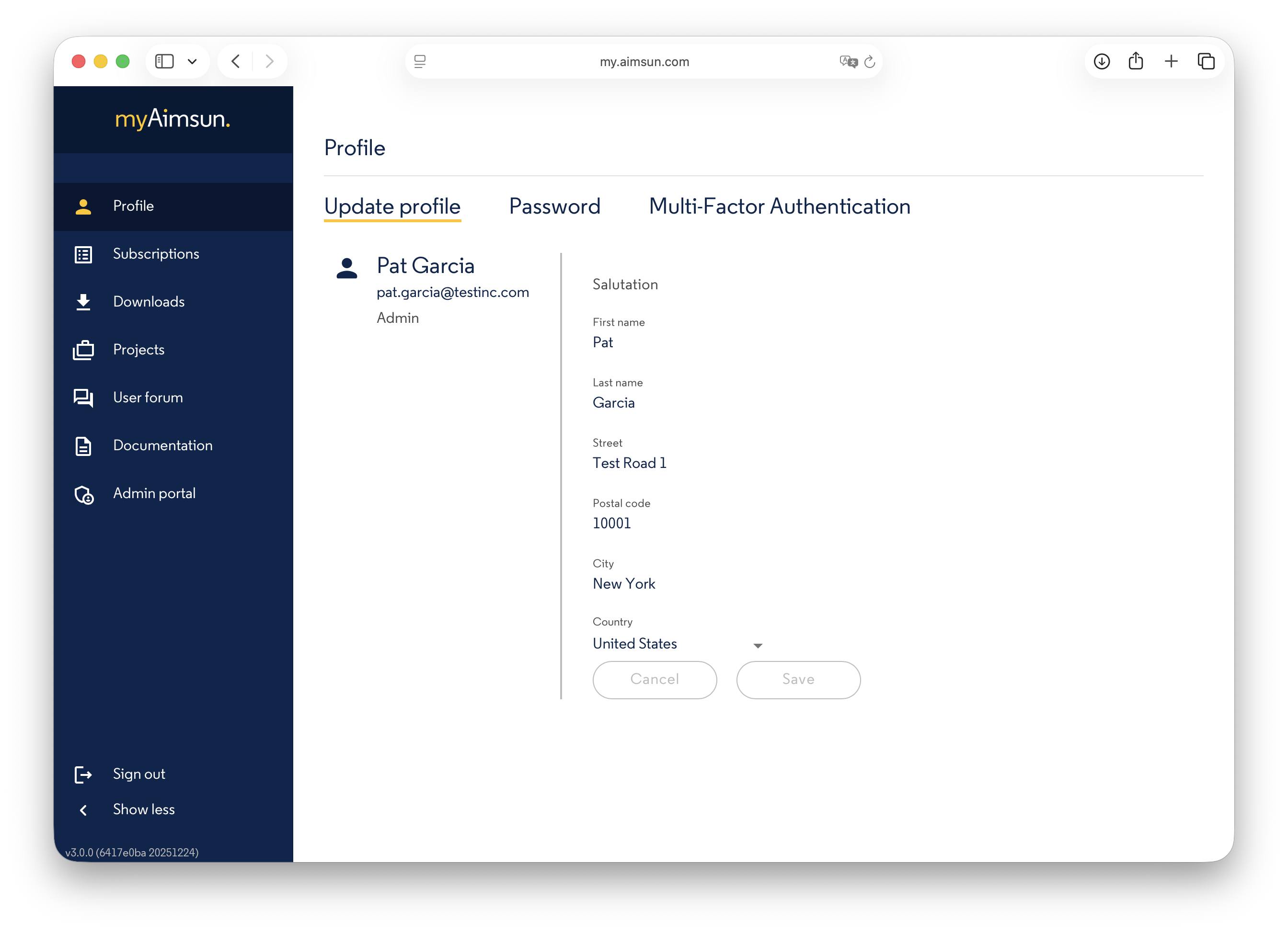
The Profile area allows users to update their name and contact information. To modify these details, edit the text fields as desired and click Save.
Password
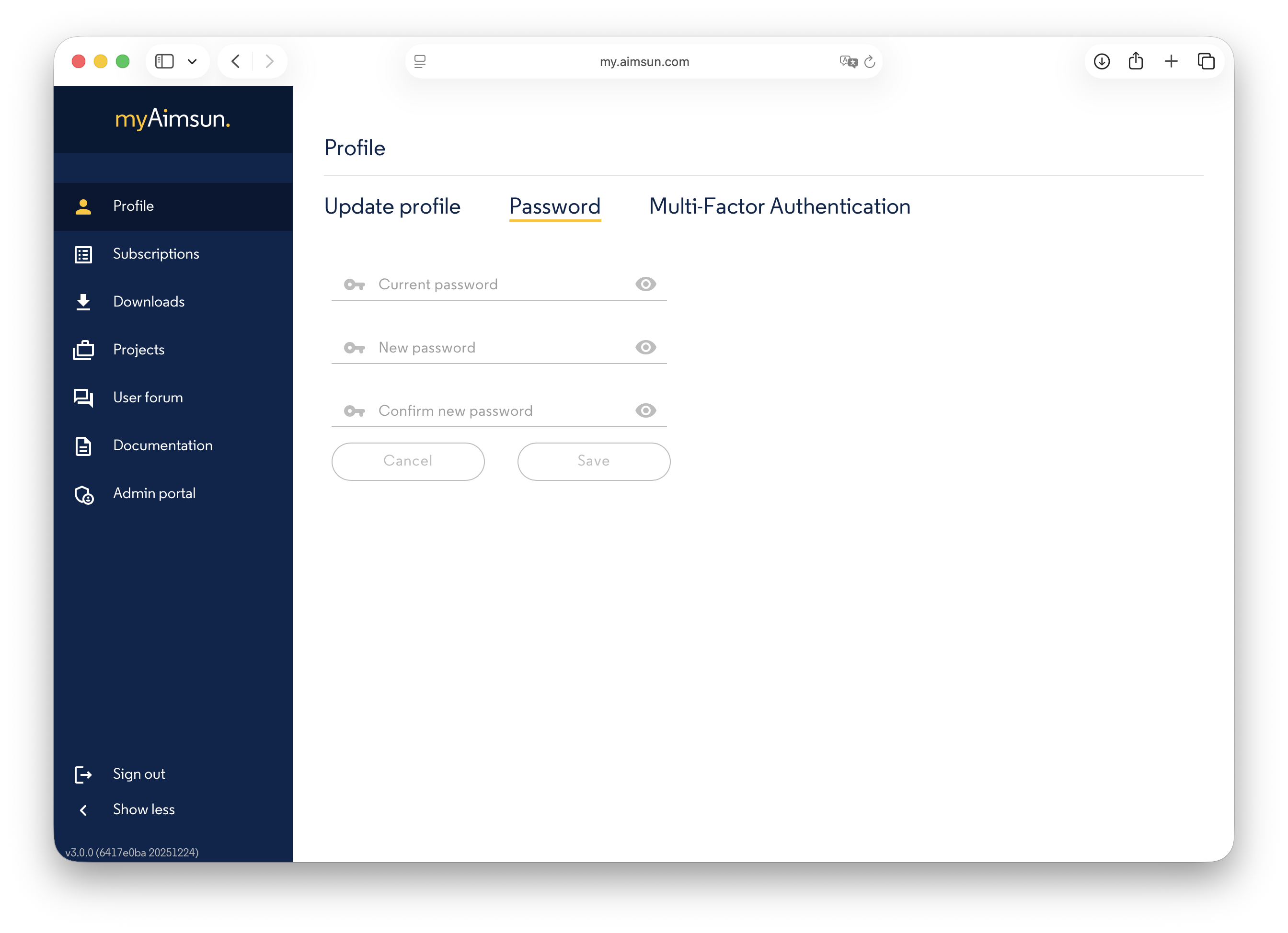
Use the Password section to update your account credentials.
Multi-factor Authentication
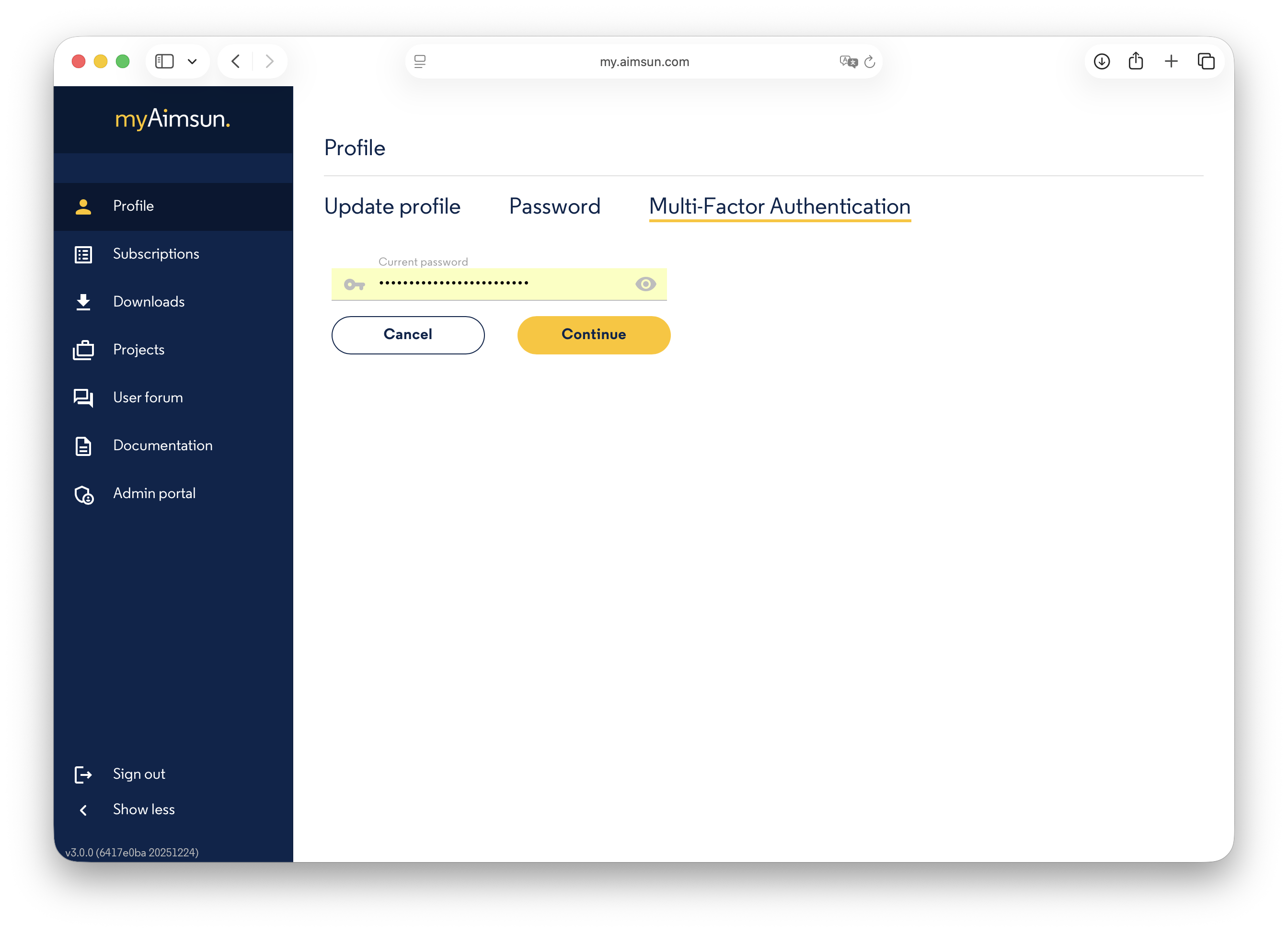
Use the Multi-factor Authentication section to activate this highly recommended security feature. To begin activation, first enter your current password:
Next, link your mobile device to your myAimsun account using an authenticator app. We recommend the following:
- Microsoft Authenticator
- Twilio Authy
- Google Authenticator
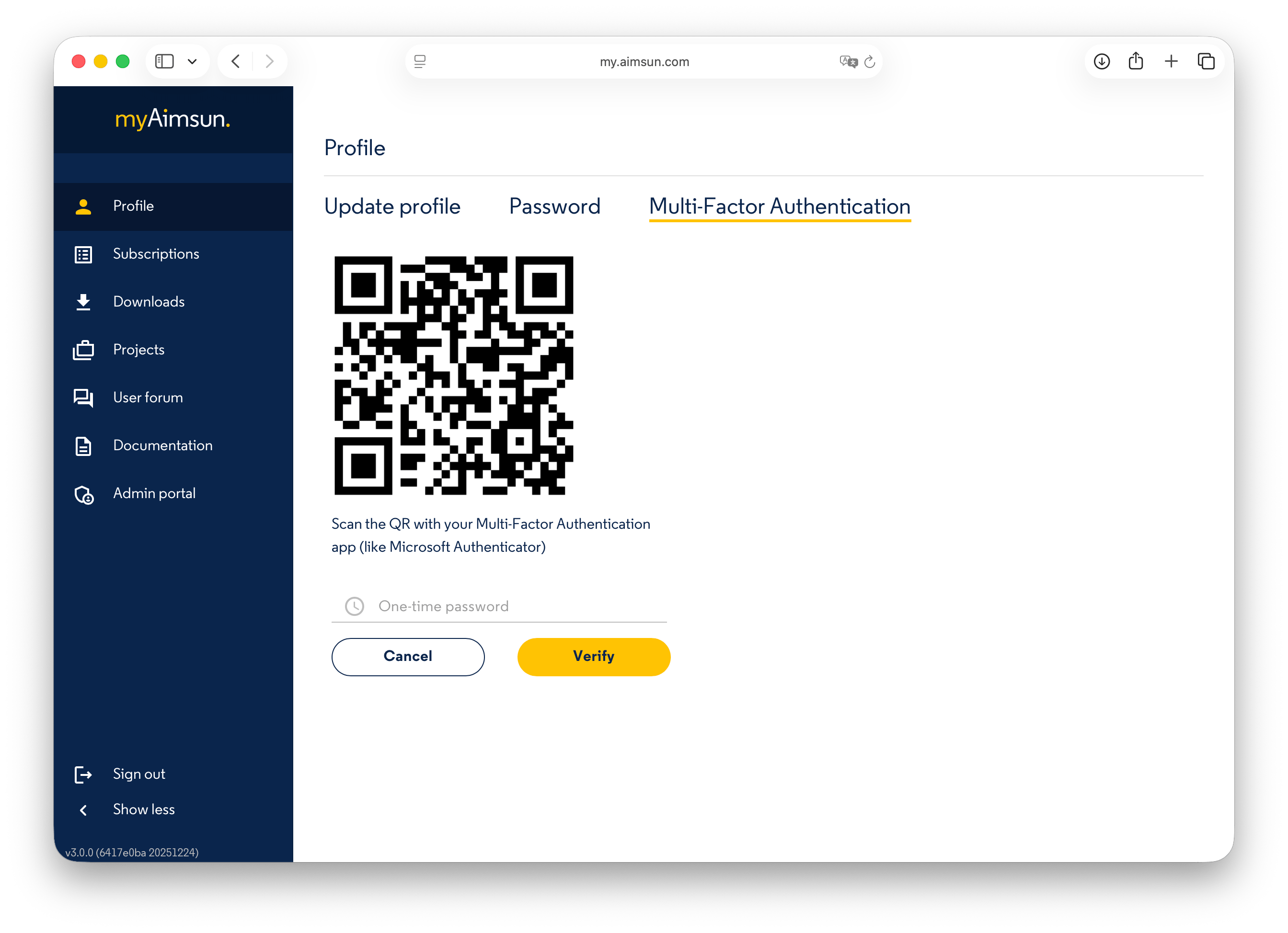
To complete the setup, scan the provided QR code and enter the generated one-time password (OTP).
Subscriptions
The Subscriptions area displays a list of assigned Seats and the renewal date for your company’s subscription. For standard users, this list is read-only; it is managed by the designated Company Administrator via the myAimsun Admin portal.
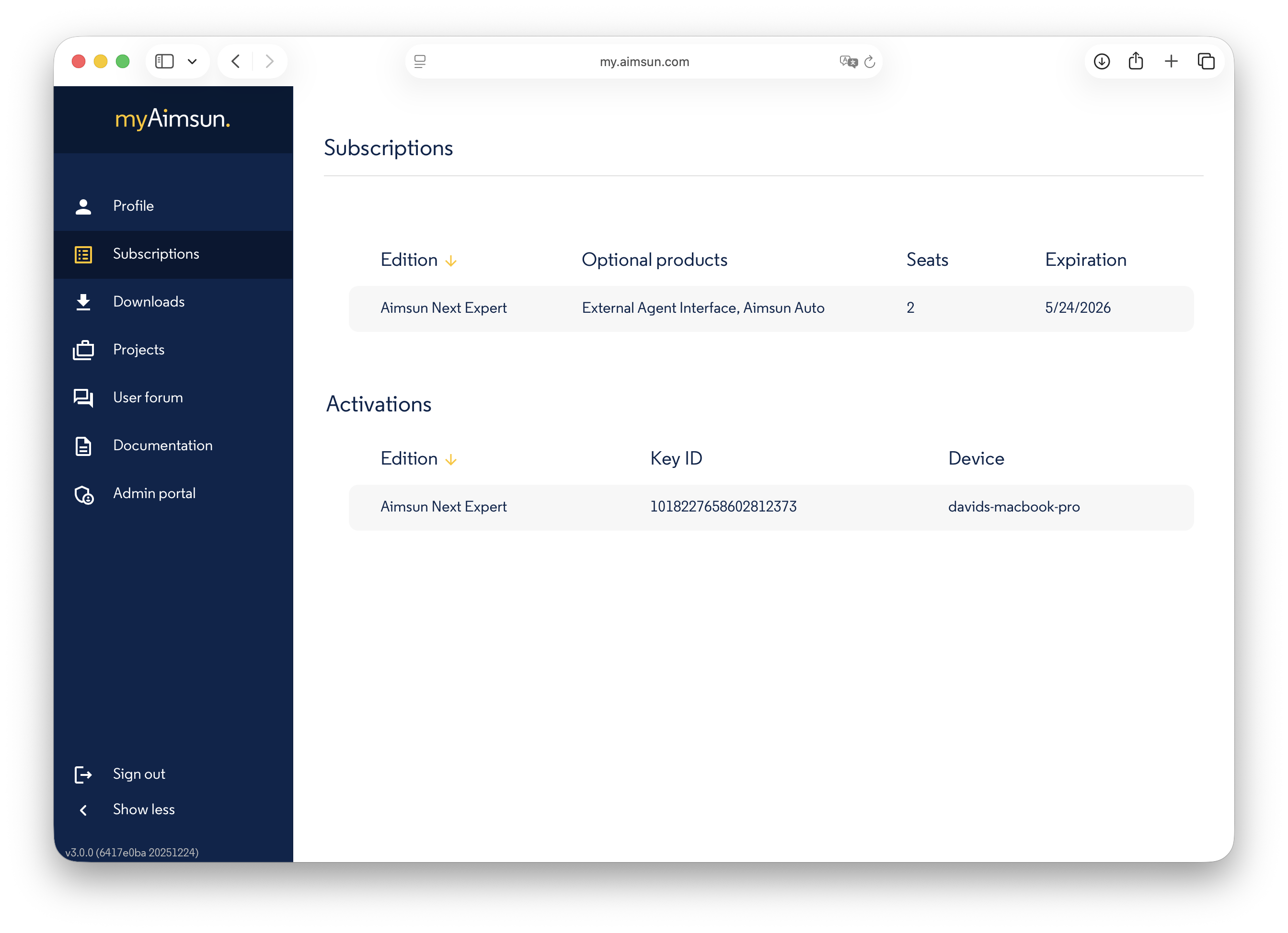
A second list, Activations, displays the specific devices where the assigned Seats are currently in use. For further details, please refer to the Aimsun Licenser manual.
To activate a Seat, the user must open the Aimsun Licenser. This tool is available as a separate download from the downloads menu within myAimsun. For more information, refer to the Aimsun Licenser manual.
Downloads
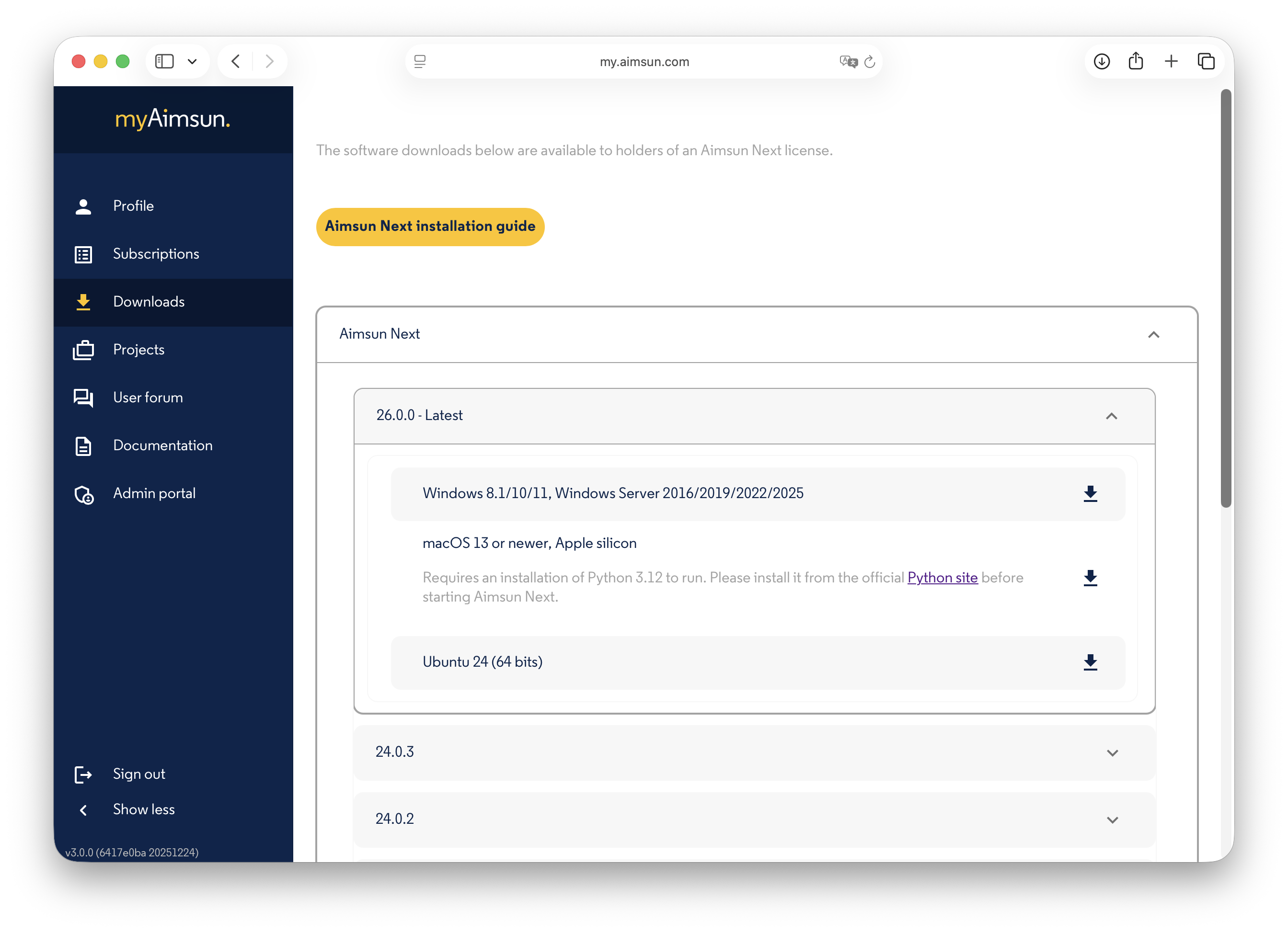
In the Downloads area, users can access and download the latest versions of Aimsun products for installation on their local devices.
Projects
The Projects area displays all existing projects and allows administrators to create new ones.
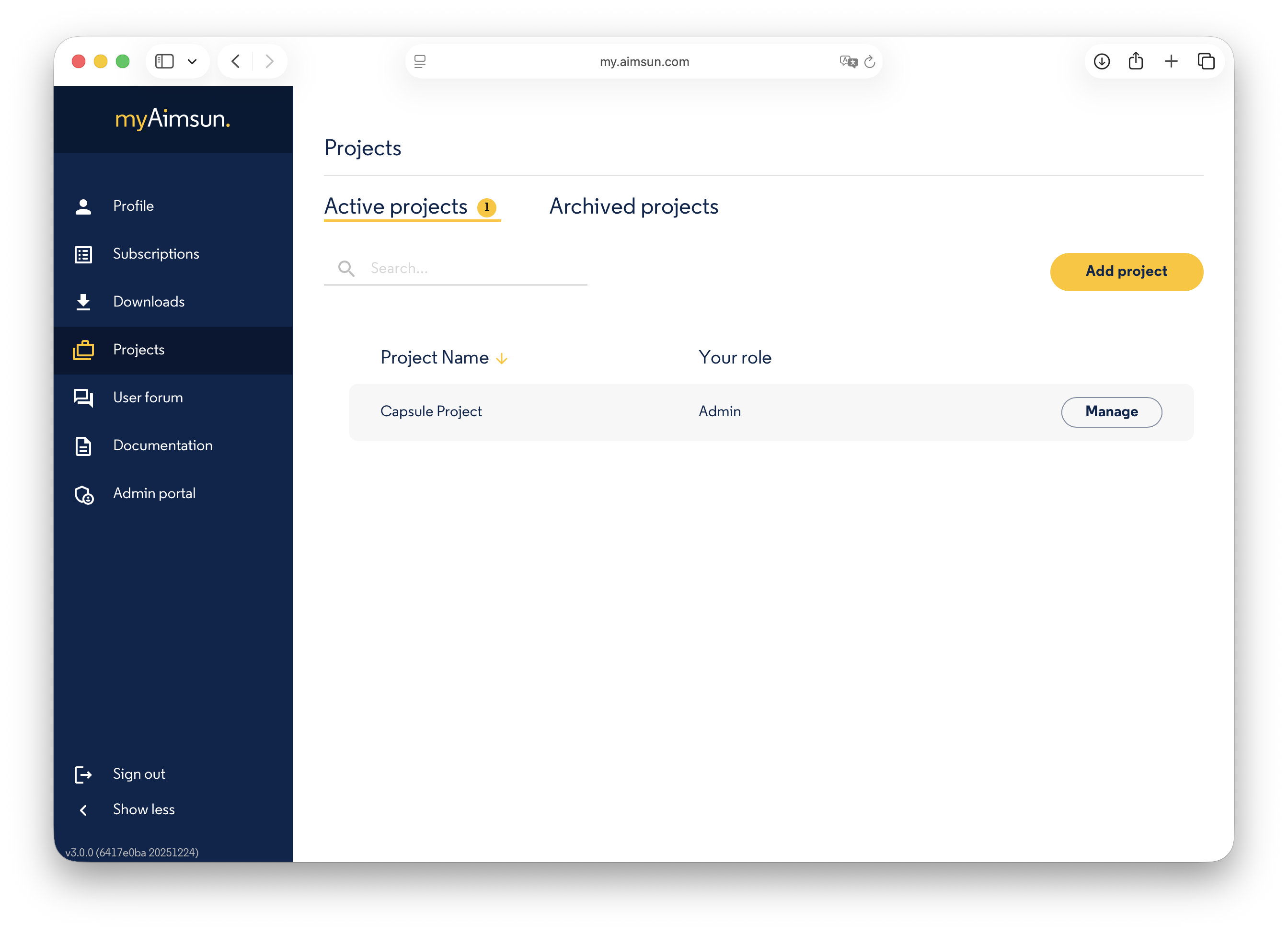
A project serves two primary functions:
- Aimsun Solution: To manage and control site access.
- Aimsun Next: To enable map-based comments and utilize the Check and Fix functionality.
User Management
Click the Manage button to open the project's management panel. From there, click the Add User button to invite a new user to the project.
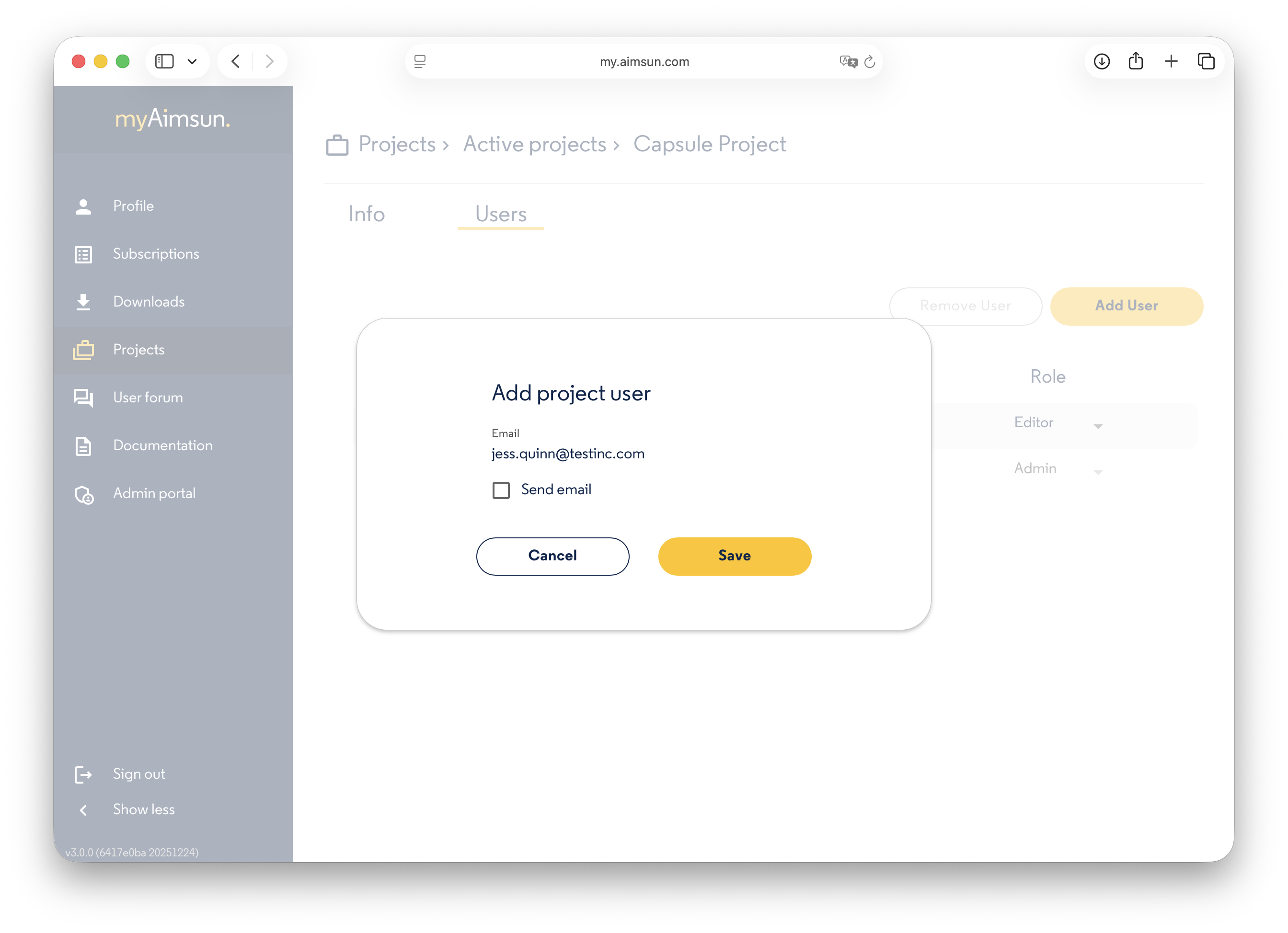
To adjust permissions, use the dropdown menu to change a user's role.
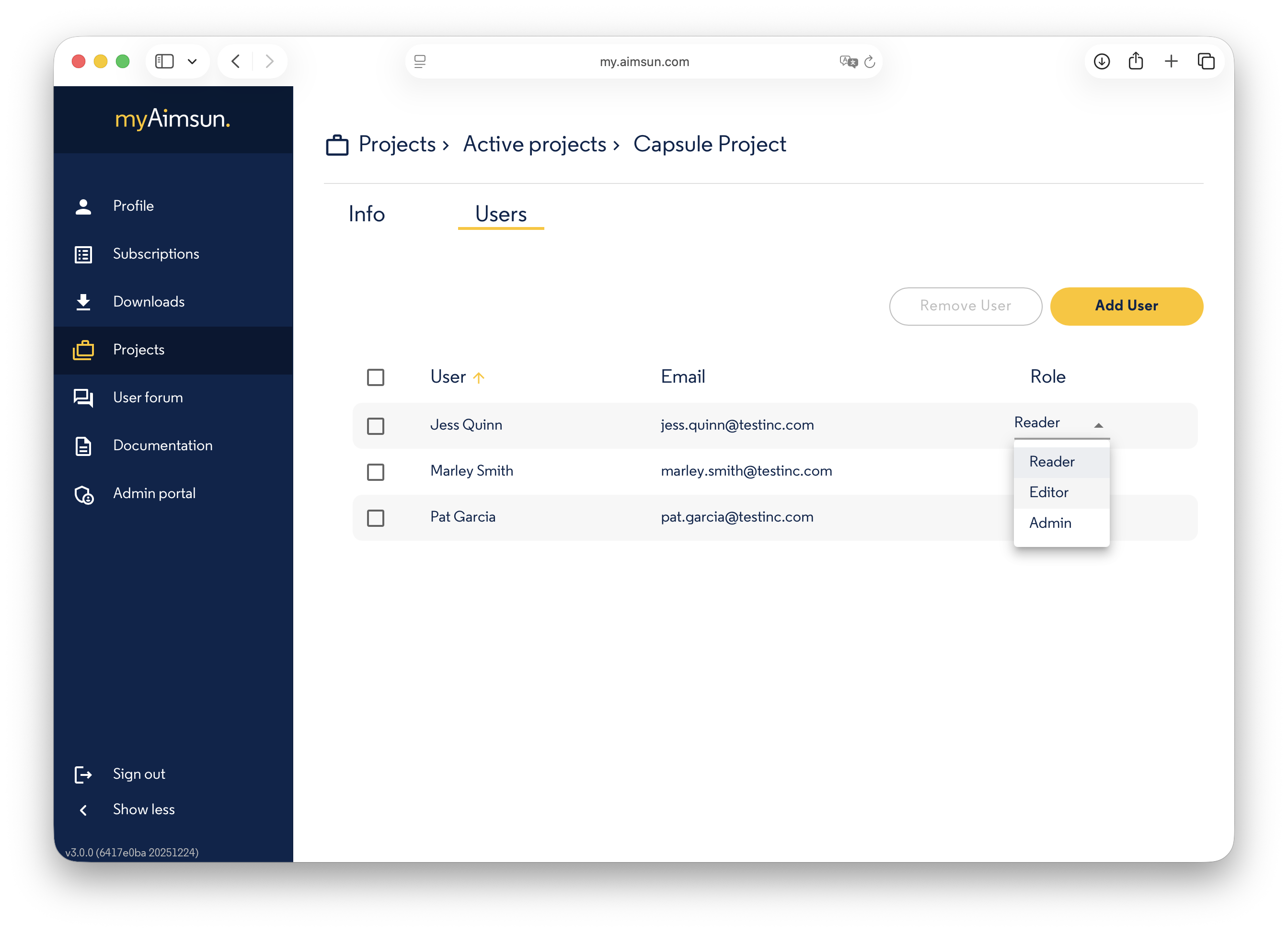
Project Role Permissions
Each role provides different levels of access within the project:
| Capability | Administrator | Writer | Reader |
|---|---|---|---|
| Read access | ✅ | ✅ | ✅ |
| Write access | ✅ | ✅ | ❌ |
| Manage project users | ✅ | ❌ | ❌ |
| Archive project | ✅ | ❌ | ❌ |
Aimsun Next
After creating a project, the administrator can associate it with an Aimsun Next document. For more information, refer to the Aimsun Next User Manual regarding the Check and Fix Tool and Geo Comments functionalities.
Aimsun Next User Forum
Click this icon to open the Aimsun Next User Forum in a new browser window. You can log in to the Forum using your myAimsun credentials.
Documentation
Click this icon to open the Aimsun Doc Hub in a new browser window.