Geo Comment
Geo comments are used to add markers at any location in the map where to add comments from several users. The functionality of working with comments is only available for users with subscription licenses and for the projects where the user is granted access in my.aimsun.com.
Geo Comment Editing
A geo comment object can be created using the Geo Comment Tool. Click on the tool in the tool bar then click in the position where the geo comment is to be located in a 2D view.

Once the geo comment is located on a location in the 2D view it can be translated to any other position by selecting it in the in the 2D view and dragging it using the mouse.
When created, all Geo Comments are added to "Geo Comments" layer.
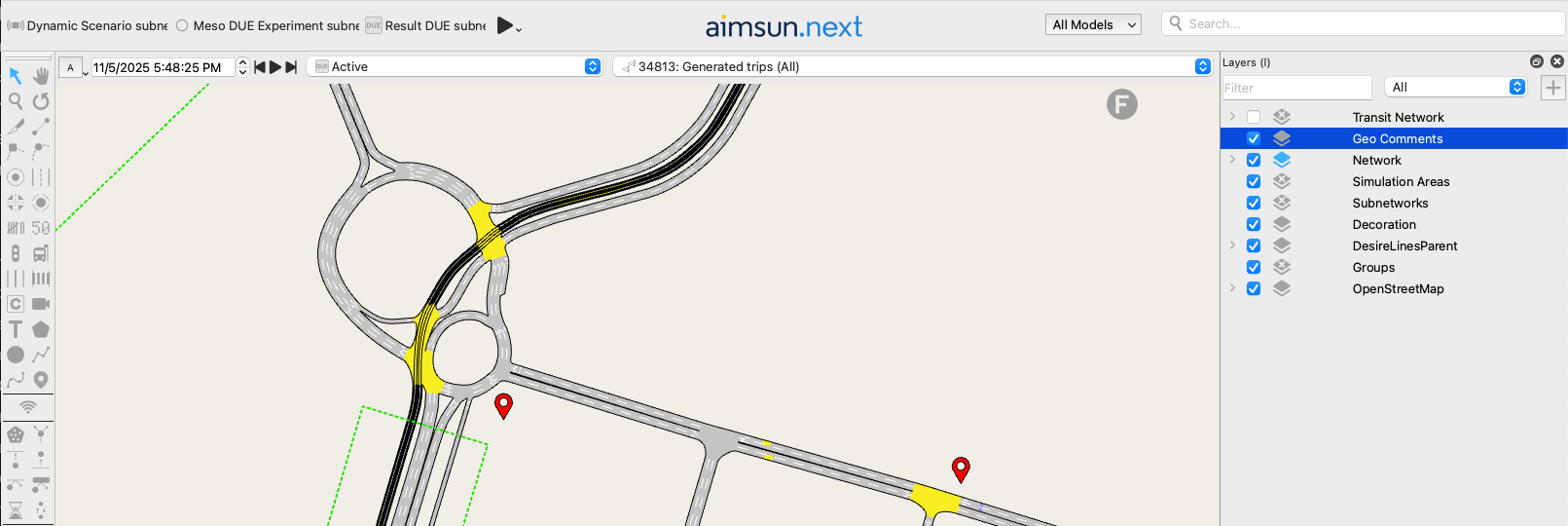
All geo comments in a project are shared among all documents from the same project.
Geo Comment Editor
The geo comment editor is used to add, edit and remove comments.
The avatar shown for each user is the one configured for that email on gravatar.com.
The actions allowed depend on the current user and its role on the project:
| Action\Role | Reader | Editor | Administrator |
|---|---|---|---|
| Read comments |  |
|
|
| Write comments | |
|
|
| Edit your own comments | |
|
|
| Edit comments from others |  |
|
|
| Delete your own comments | |
|
|
| Delete comments from others | |
|
|
To be able to see the Comments tab, the project needs to have a myAimsun Project selected in the Project Properties and you need to be logged in with a user that is included on the current project at https://my.aimsun.com/projects/my-projects.