Static OD Departure Adjustment
The static OD departure adjustment is a procedure to create a profiled demand from a static demand. To obtain this profiled demand, the original static demand is distributed through smaller intervals over the time period. The objective is to reproduce the observed traffic counts specified in the Real Data Set per interval, staying as close as possible to the original number of OD pair trips for the whole period.
Thus, it is important to start the process with a calibrated demand that fits the detection data over the scope of the model. The static OD departure adjustment does not calculate any new assignment, it takes previously calculated static paths from a Path Assignment produced earlier and link (section + turn) travel times in minutes (through the evaluation of static cost functions or user-defined cost components), which are used to calculate the assigned number of vehicles for each time period. The method employed by the static OD departure adjustment scenario is described in Static OD Departure Adjustment Algorithms.
To execute a static OD departure adjustment, create a Static OD Departure Adjustment Scenario and add an experiment to it. The scenario will contain all the input data; the experiment created from this scenario will contain the algorithm parameters.
The result of the OD departure adjustment will be a set of matrices that form a profiled Traffic Demand.
Static OD Departure Adjustment Scenario
To create a new Static OD Departure Adjustment Scenario, select New > Scenarios > Static OD Departure Adjustment Scenario in the Project Menu. If you are working on a subnetwork, the new scenario must be created from the subnetwork's context menu.
The Scenario context menu has options to Activate, create a New Experiment, execute one of the available Scripts, Delete, Rename, Duplicate or open the Scenario Properties editor.
When selecting Activate from a scenario, the first experiment available within the scenario is automatically activated.
The scenario editor is divided into several tabs which describe what are the inputs of the process, the outputs to be collected, the variables used to modify the scenario, and some parameters to describe the scenario.
Main tab
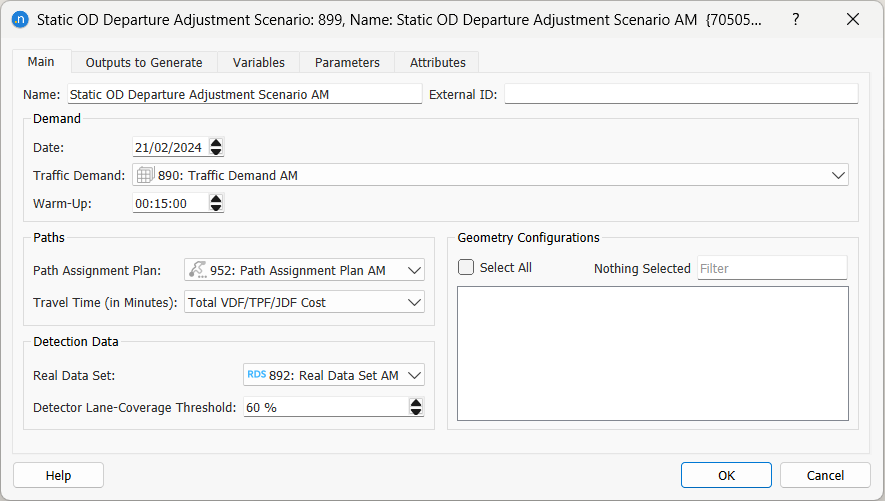
The main tab defines the scenario inputs: the Traffic Demand and the Warm-up duration, the Path Assignment Plan, and the Real Data Set. You can also activate Geometry Configurations for this scenario.
Demand
The initial traffic demand may be a single matrix covering the whole period or a profiled demand, but note that any profile or slicing will be disregarded. Instead, an automatic slicing is already included as the first step in the process to split the matrix into multiple matrices using the time intervals in the real data set. A weight will be applied to each slice, corresponding to the proportion of the sum of all RDS counts in that slice divided by the total RDS counts for the whole period. Counts obtained during warm up are not accounted for, and the weight used for the warm up period will be set to the one obtained for the first slice of the demand.
Because the departure adjustment takes into account the travel time from origin to detectors, the flows for the first time intervals might be unrealistic (if the travel time in minutes from some origins to some detectors is higher that one interval). Therefore, a warm-up time is recommended and the traffic demand will then be automatically extended to operate before its initial time.
If there is detection data for the warm-up period, the demand for the warm-up will be a fraction from the original demand, calculated as a proportion between the total vehicle count in the warm-up period and the modeled period. If no detection is available for the warm-up, it will receive a flat demand equal to the initial estimated profiled demand for the first interval.
Paths
The paths information is defined by specifying a Path Assignment Plan obtained from static assignments or adjustments. The departure adjustment works with travel times in minutes. If the path calculation costs are in a different unit, e.g. when using a generalized cost that includes a toll or a distance component, a Function Component must be defined in the static cost functions to provide the travel time in minutes. This component must then be selected in the Travel Time (in Minutes) field.
Detection Data
The detection data is defined by specifying the Real Data Set that contains the counts from Detectors or Detector Stations in the network. The Detector Lane Coverage Threshold determines the percentage of lanes a detector and/or detector station must cover in order to be included in the departure adjustment process.
Static OD Departure Adjustment Experiment
Create a new Static OD Departure Adjustment Experiment by right-clicking on the Static OD Departure Adjustment Scenario.
The Experiment context menu has, among others, options to Activate, Delete, Rename, Duplicate or open the Scenario Properties editor.
When selecting Activate from an experiment, it is activated in the task tool bar area.
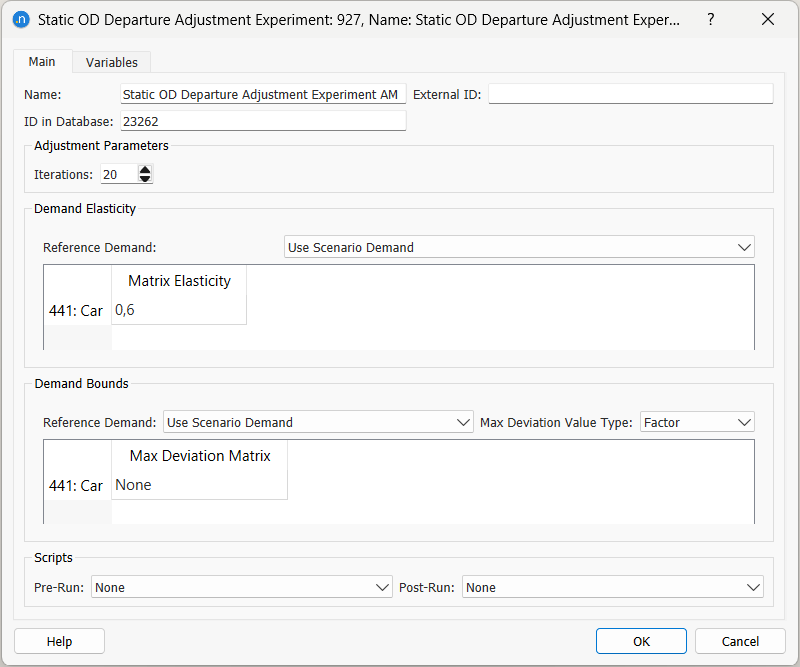
On the Main tab, specify the following parameters:
- Number of Iterations to be performed.
- Demand Elasticity per user class: A value between 0 and 1 to indicate the elasticity of the adjusted demand with respect to the Reference Demand. A zero value (not allowed by the UI) would mean that no variation is allowed and a value of 1 means that variation is not penalized at all. The default value is 0.5. This means that equal weighting is applied to the dual goals of maintaining the prior matrix value and matching the detector values.
- Demand Bounds: Maximum Deviation Matrix, per user class. Maximum Deviation Value Type: Select Percentage, Factor, or Absolute, and specify a Max Deviation Matrix (with Contents: Max Deviation) per user class (Car, Truck, etc.) to limit the changes in the traffic demand with respect to the Reference Demand. Leave as None if no demand bounds are specified. Refer to Adjustment Maximum Deviation Section for more information.
- Scripts: Select Pre-Run and Post-Run scripts, if applicable, to run automaticaly before and after the experiment.
The OD Departure Adjustment can be run from the context menu of the Static OD Departure Adjustment Experiment.
Static OD Departure Adjustment Outputs
Trips
The result of the Departure Adjustment is a set of profiled matrices, with the same interval as the data in the Real Data Set. After validating the output statistics, create the new Traffic Demand and its matrices by clicking the Create Demand and Matrices. The new demand and matrices will be stored in the Project folder.
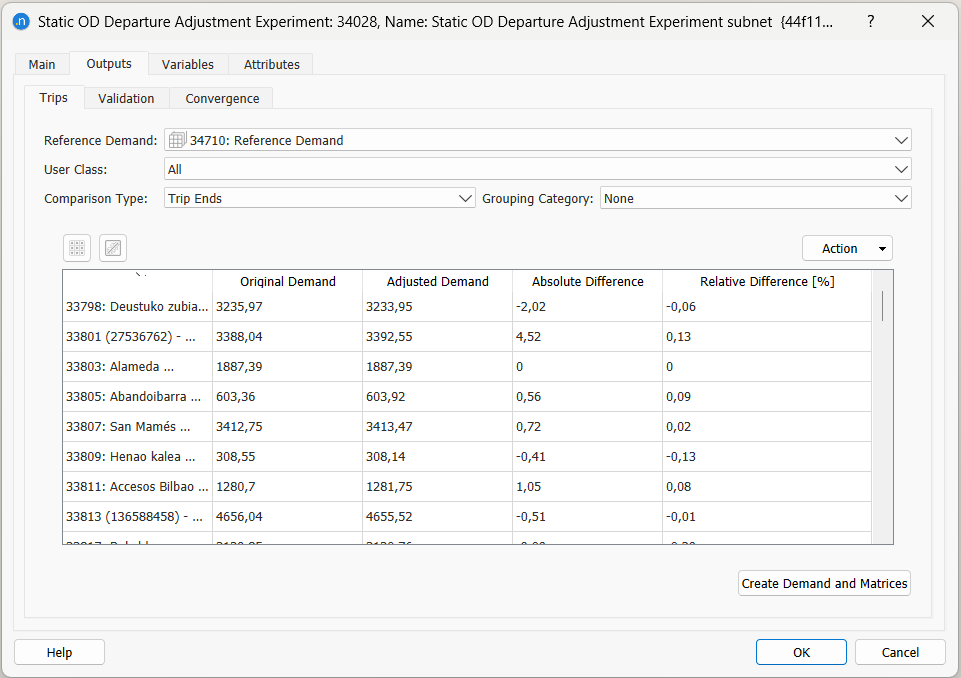
The adjusted matrices from the experiment are displayed on the Trips subtab. They are presented by User Class (or aggregated to All user classes) and include Original Demand, Adjusted Demand, Absolute Difference, and the Relative Difference [%]. Click the demand column headings to sort the rows by quantity of demand and difference.
A drop-down menu allows choosing whether the comparison should be the input traffic demand or the Reference demand vs. adjusted. This menu is hidden if no Reference Demand was used.
Another drop-down menu allows the user to select Cell-by-cell or Trip Ends to compare the number of generated and attracted trips, per OD pair or centroid, or aggregated per grouping according to the selected Grouping Category.
To plot Trips outputs as a regression line, comparing adjusted and original demand, click the graph icon  .
.
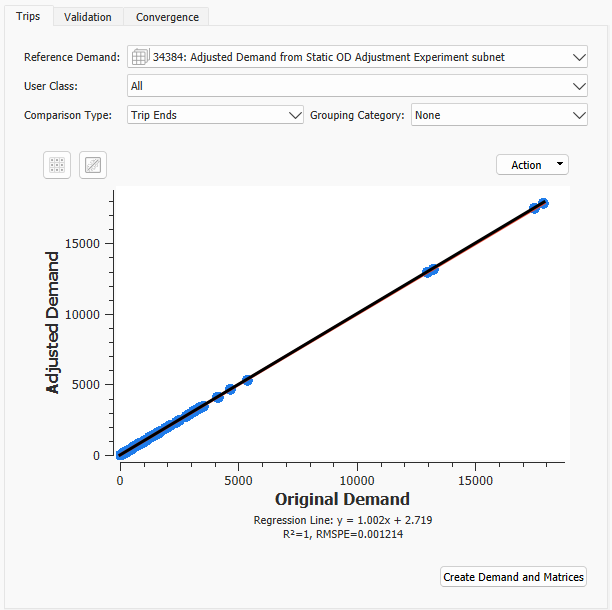
To copy the data or save a screenshot of the data, click Action and select Copy Table Data or Copy Graph (Snapshot). You can now paste the saved data or graphic into other applications for analysis or display.
Validation
The Validation tab is used to compare the results (only the last iteration) with the Real Data Set. Results can be filtered by interval and/or vehicle type selecting the desired one in the corresponding combo box located at the top of the dialog. They are shown as a regression plot, as a table, or, as shown here, as a stick plot.

Convergence
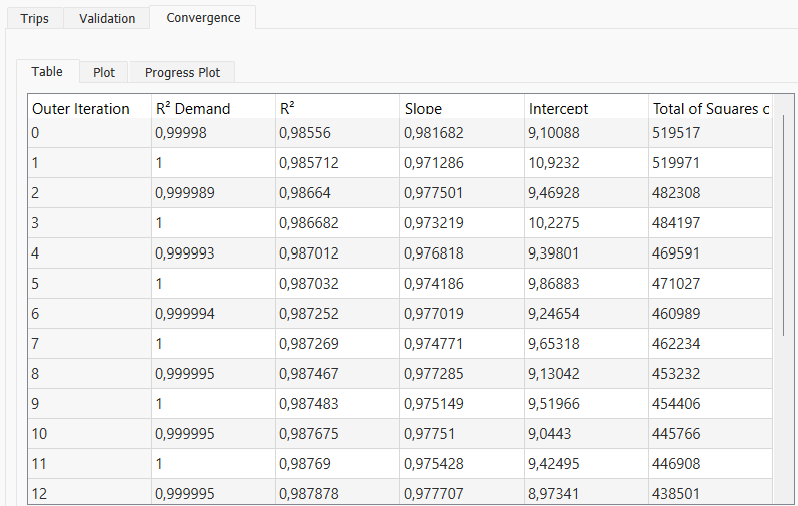
The Convergence subtab displays the progress toward the convergence over the iterations.
-
Outer Iterations. The iteration number - the Maximum Number of Iterations specified in the experiment will be calculated.
-
R2 Demand. The measure of the closeness of the fit of the adjusted demand and the seed demand (Reference Demand if defined).
-
R2. The measure of the closeness of the fit of modeled flows to observed flows.
-
Slope and Intercept. The two values defining the regression line.
-
Total of Squares of Errors. The sum of the squares of absolute differences (observed - modeled) flows.
The Plot tab shows the progression of the R2 value per iteration. If it has converged on a value close to 1.0 then the adjustment can be considered complete. If it is still rising toward 1.0 then more iterations might be required. If it is stabilizing at a value much lower than 1.0 then the input or reference demand, and their constraints, are preventing the adjustment procedure from achieving a satisfactory result.
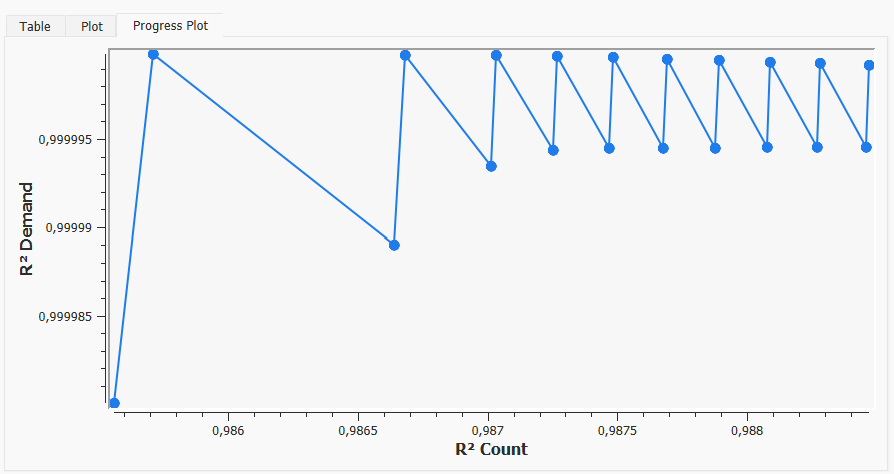
The Progress Plot tab shows the progression of the R2 Demand value and the R2 value per iteration. This plot shows the effect of each adjustment step both in terms of trying not to distort the seed demand and in terms of improving the validation.
The screenshots below show the Table, the Plot and the Progress Plot subtabs.